
WhatsApp: Facebook Business Verification
Introduction to Facebook Business
Creating a Facebook Business Manager Account is a mandatory process
to be completed to gain access to the WhatsApp Business API.
The below mentioned document aims to provide :
- Steps for creating a business manager account
- Identify the Facebook Business manager ID
- Documents needed for Facebook Business Verification
- Step wise process on all the information required in order to complete the verification successfully and the reasons for verification rejection with solutions.
The Facebook teams do their due diligence on the information and documentation submitted and only then the business is verified.
Introduction to Facebook Business
- Facebook Business manager is a Facebook tool which helps in organizing and managing the business.
- It is essential for initiating the WhatsApp Business Account (WABA).
- It is used to connect with customers over WhatsApp using Netcore’s API after the WABA is set up.
Create a Business Manager Account
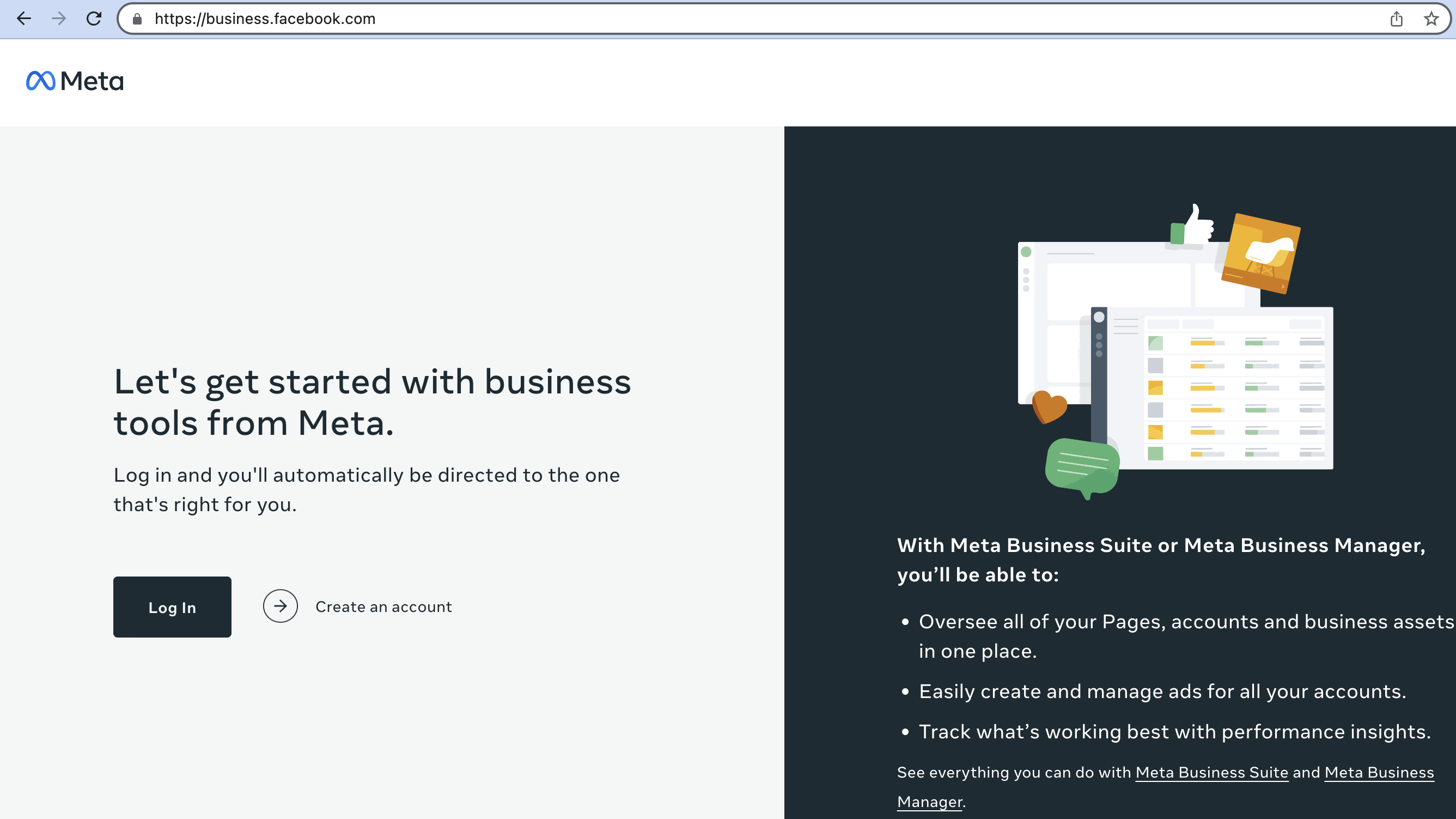
Log in to business.facebook.com and then click the blue button in the top right.
NoteYou need to be logged out of facebook.com before opening business.facebook.com.
A. Enter the details below to proceed to the next step
- Your business name
- Your name
- Business email address you want to use to manage your Facebook Business Manager account.
B. Submit your business details:
- Address
- Phone number
- Website url
- Next, please check your email for a message with the subject line: “Confirm your business email.” Within this message
- Click Confirm Now.
Identify Facebook Business Manager ID
- Once you have logged into your company’s Facebook Business Manager Account.
- Go to Business Settings.
- Find your Business Manager ID number under Business Manager info.
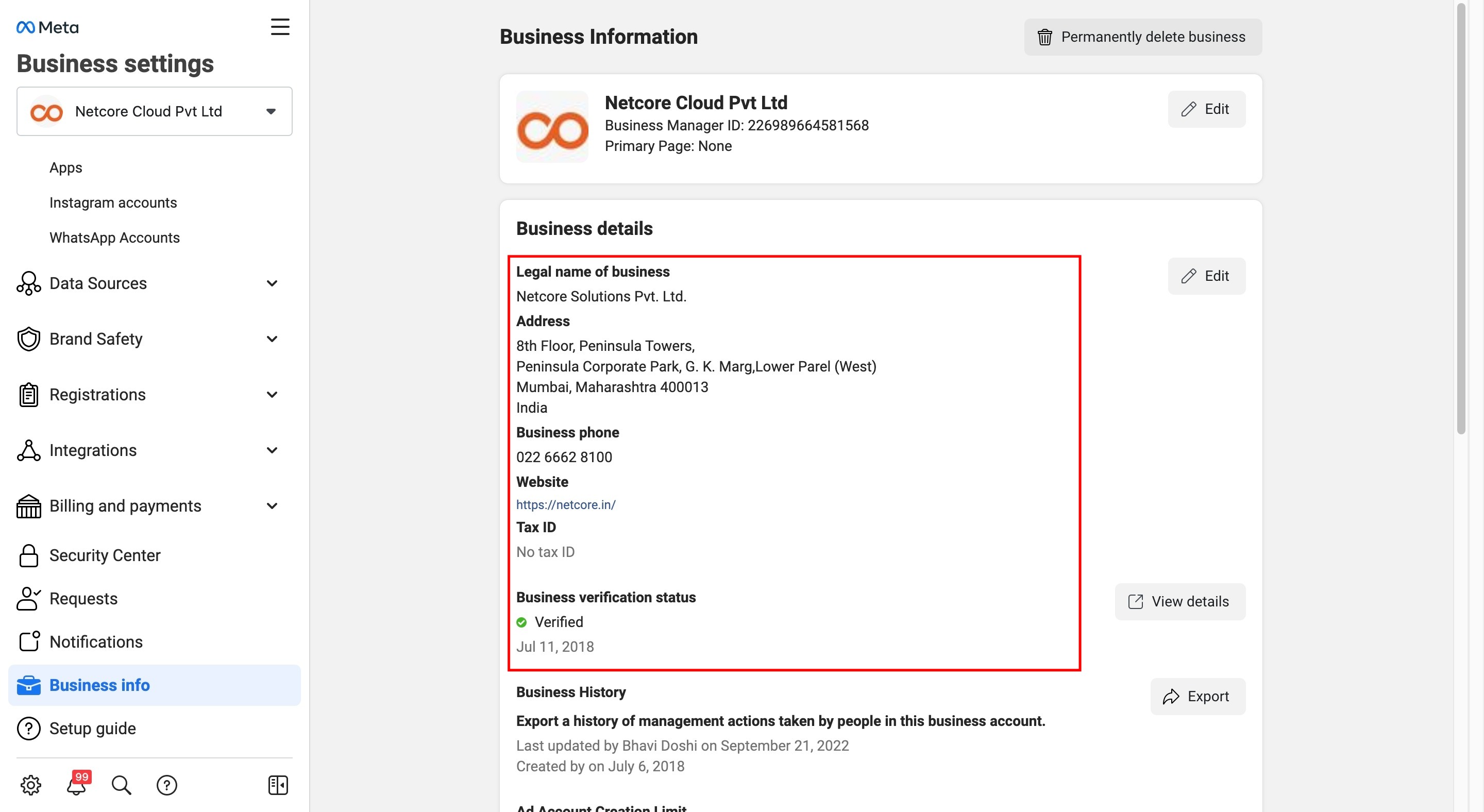
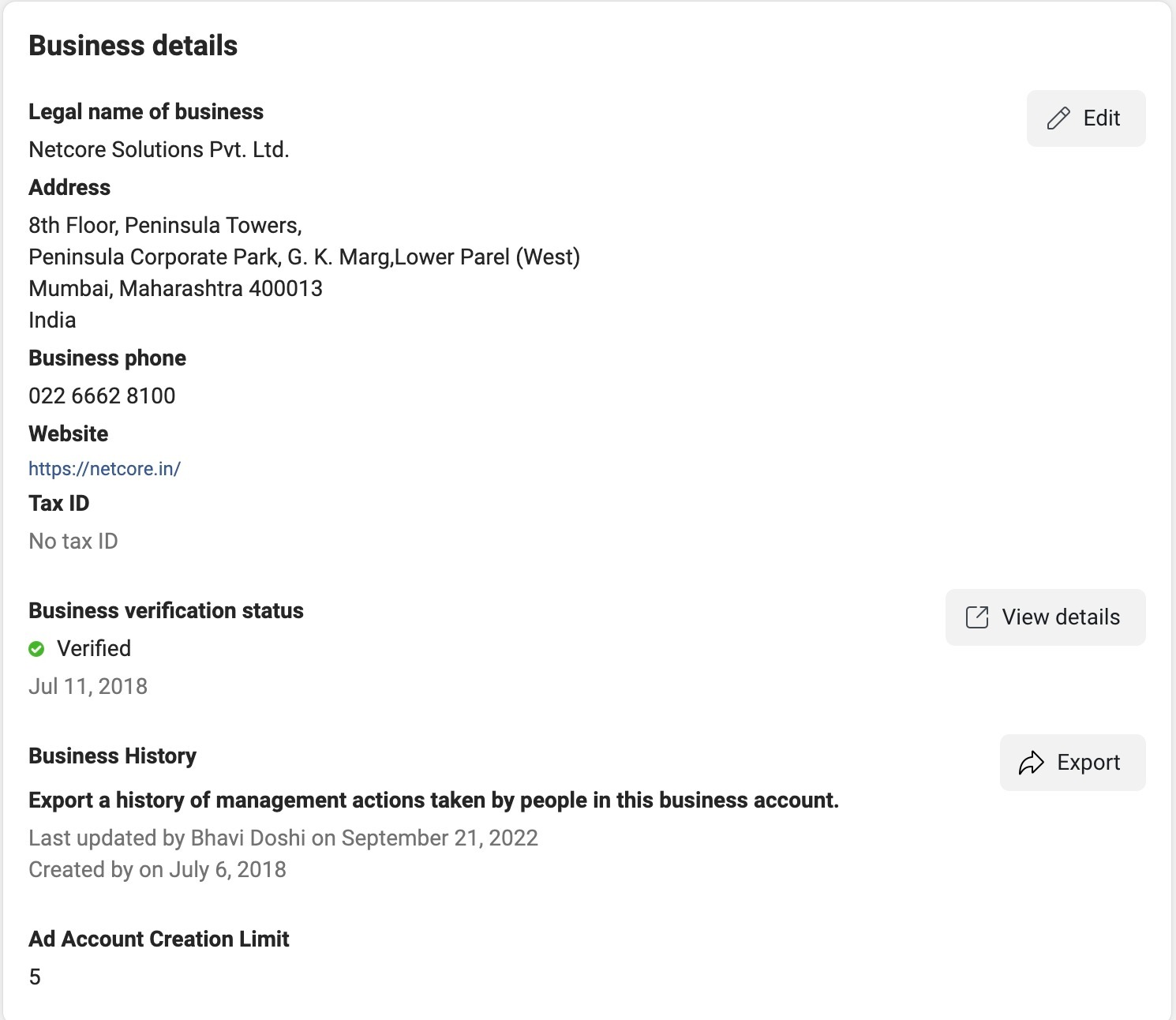
- Update the Business Info Page. It is mandatory to fill in all the details on the Business Info page including the non mandatory fields as well.
- Click on the Business Setting → Business Info tab
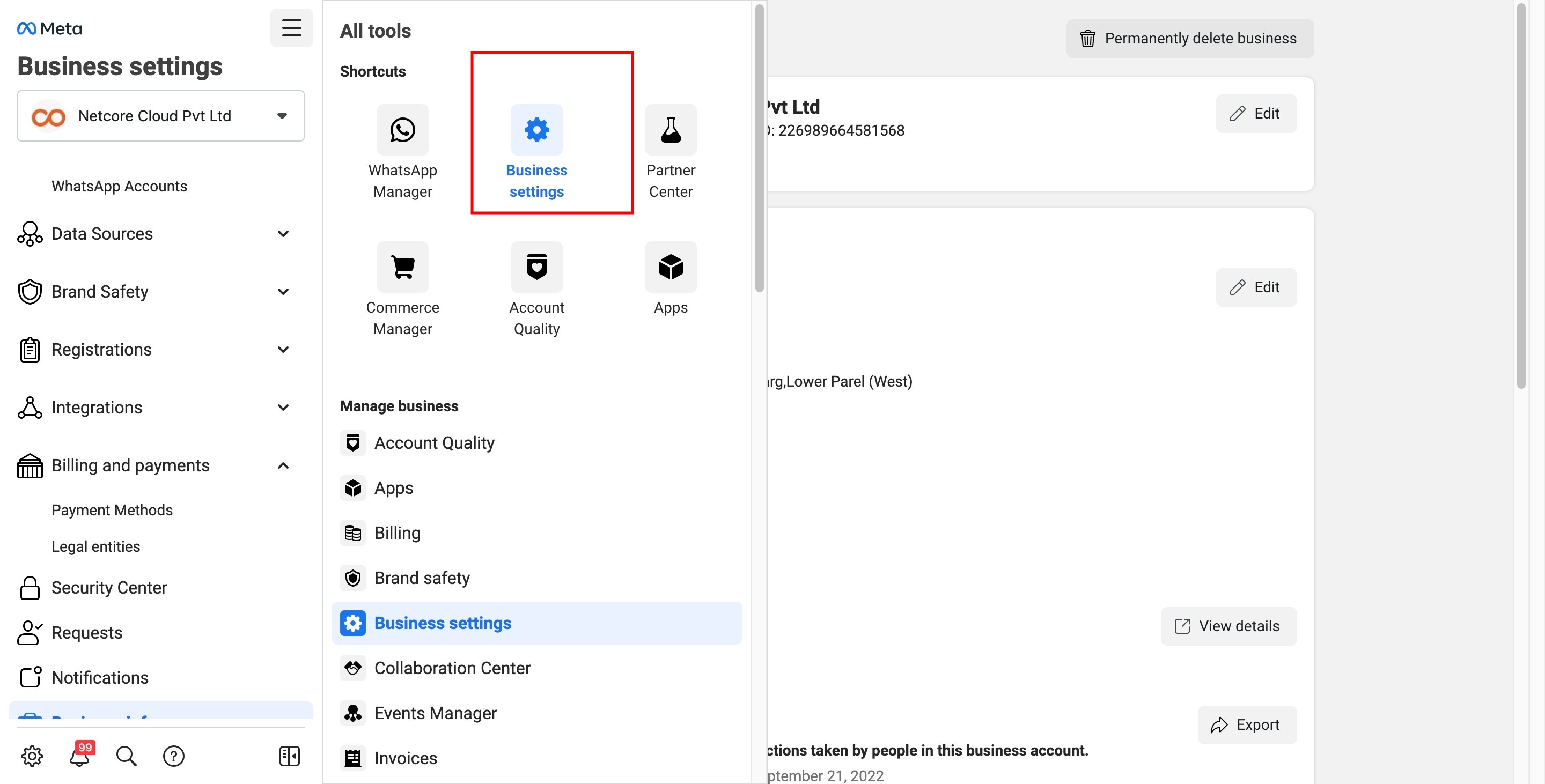
- Click on the edit button on the top right corner on the Business Info page and update the page
Prerequisites for Facebook Business Verification
Please find below the list of country-wise documents that are needed to begin the Facebook Business Verification:
Steps for Facebook Business Verification
- Log in to Facebook Business using https://business.facebook.com
- Under Business settings, click on Security Center
- Click on Start Verification
1. Enter business details on the Business Info page
It is mandatory to fill in all the details on the Business Info page, including the non-mandatory fields as well.
- Enter Name, Address, City, Website details.
- The website entered would be used to verify the domain name of the business email address entered in later steps.
- Business name entered: The entered name must match exactly the one specified in the document uploaded in steps 2 and 3.
- Additionally, the Business name must match the legal name listed on the company website.
2. Choose from the existing list populated by Facebook
- Facebook will automatically populate a list of businesses from the names available publicly on Facebook. Please select an option if the business is available; otherwise, choose ‘None’ and proceed accordingly.
3. Upload KYC Documentation
- This is the most crucial step in the verification process.
- The documentation uploaded must be true; otherwise, the verification will be rejected by Facebook.
- Documentation accepted for legal name includes:
- Certificate of formation or incorporation (Ex: GST Certificate)
- Articles of Incorporation
- Business Bank Account Statements
- Utility bills (Ex, phone or electricity bill) that show the legal address, name and phone number of your business, respectively
- Business Credit Reports
- Business license and permits from the local, state, or central government
- Discrepancies in the step-by-step documentation submitted above would result in business verification being rejected.
4. Get Verification Code
- The final step of the verification process requires sharing an email address that contains the domain name of the website being shared.
- Once the email has been sent, click Verify Now.
- You will receive an email with the verification code from the Facebook teams. Enter the verification code to complete the verification process. The Facebook team will take 4-5 days to complete the process from their end. You will receive an email stating the update from them.
Verification Button is grayed out
If the Verification Button is greyed out, please share a on behalf of WABA request. (Please reach out to your relationship/sales manager for the activity.
Bypass the Business Verification Process
- Businesses can bypass the Business verification step and proceed with the WhatsApp account setup
- If the Business verification is bypassed:
- They will be placed in a new Limited Access tier which will enable access to the following
- An unlimited number of customer-initiated messages
- Ability to send HSM notifications to up to 50 unique customers in a rolling 24-hour period.
- Will be able to add up to two (2) phone numbers
NoteThe TAT for verification is a maximum of 21 days For you to be eligible to bypass the business verification, the Business Info page needs to be updated (all the fields need to be completed)
A business may choose to initiate Facebook Business Verification if at any point they require:
- Use of the “Standard Access” tier (1K,10K,100K),
- More than 2 WhatsApp Business Accounts (WABAs)
- An Official Business Account (Green tick)
Reasons for Facebook Business Verification rejection
Please find below a few common reasons for failure of Facebook
Business Verification:
A. Multiple attempts to verify your ID might lead to rejection.
Solution:
- Facebook provides 3 chances to send corrected documents and apply for verification. Failure to do so in these many chances could lead to disabling the ability to apply for Facebook Business Verification.
- Please seek professional assistance from Netcore to help with the verification process, in case of any failures.
B. Submitting unaccepted or incomplete documents.
There are specific types of documents that are accepted for Facebook Business Verification. Incomplete documents are not accepted by Facebook and the verification will be rejected.
Solution:
- Please find below the list of documents that are accepted by Facebook:
- Certificate of Formation (for a partnership)
- Articles of Incorporation (for a corporation)
- Local Business License (issued by your city, county, state, etc.)
- A utility bill
- Tax filing
- Please make sure that completed documents are submitted for verification.
C. Submitting documents with an incorrect language code or in an unsupported language.
Facebook currently supports a list of languages. It is essential to choose the correct language so that Facebook can verify the documents, else the request will be rejected.
Solution:
- Please choose the language appropriately based on the options provided by Facebook.
D. Submitted documents are expired, illegible, or not viewable.
Solution:
- Please make sure that valid documents are submitted for verification.
- Please make sure the document submitted is not blurry, has a very small text size, a low resolution, or is a corrupted file.
E. Inconsistency with Legal Business Name.
Request will be rejected:
- If the document does not contain the legal Business Name.
- If the legal Business Name on the document submitted does not match the Business Name on Facebook.
- If the legal Business Name and Address submitted does not match MCA (Ministry of Corporate Affairs) records.
Solution:
Please make sure:
- To submit an acceptable document that clearly states your legal Business Name.
- To update your businesses’ legal name exactly as it appears on the document submitted.
- The information is consistent with MCA records because Facebook uses such third-party databases to verify the legal business details submitted by you.
F. Submitting documents with a partial or wrong address.
Solution:
Please make sure to upload a new document that mentions the legal name and complete legal address of your business for Proof of Address.
G. Phone number on the document does not match your business phone number.
Solution:
Please make sure the phone number provided is the same as the business phone number on Facebook.
H. Not following-up with additional documents required by Facebook.
Solution:
If Facebook has requested for any additional documents against your application, then please ensure to provide the requested documents within the mandated time frame as set by Facebook.
I. Unable to receive verification code.
Solution:
If facing any trouble receiving verification code, try requesting it again.
Also the phone number option may not be available in all countries. If after requesting verification code again there is still a problem faced with it, please reach out to helpdesk
( [[email protected]](mailto:[email protected]))
J. Website domain is not verified.
Solution:
Please ensure that the name on the website of your organization matches with the legal business name as provided in the application to Facebook.
The legal name of the business and its logo should be available on the website.
Watch this Business Verification to help better understand the process. How To video
For more information or help please write to [[email protected]](mailto:[email protected])