
WhatsApp Third Party Integration
Netcore CPaaS Platform support WhatsApp Business API Integration with the below mentioned partners.
WebEngage Integration
You can get integrate your Netcore WhatsApp Business number API by choosing the Private WSP Option.
Configure WhatsApp Via Private WSP Option
- Log in to > WebEngage Dashboard
- WebEngage Dashboard > Integrations
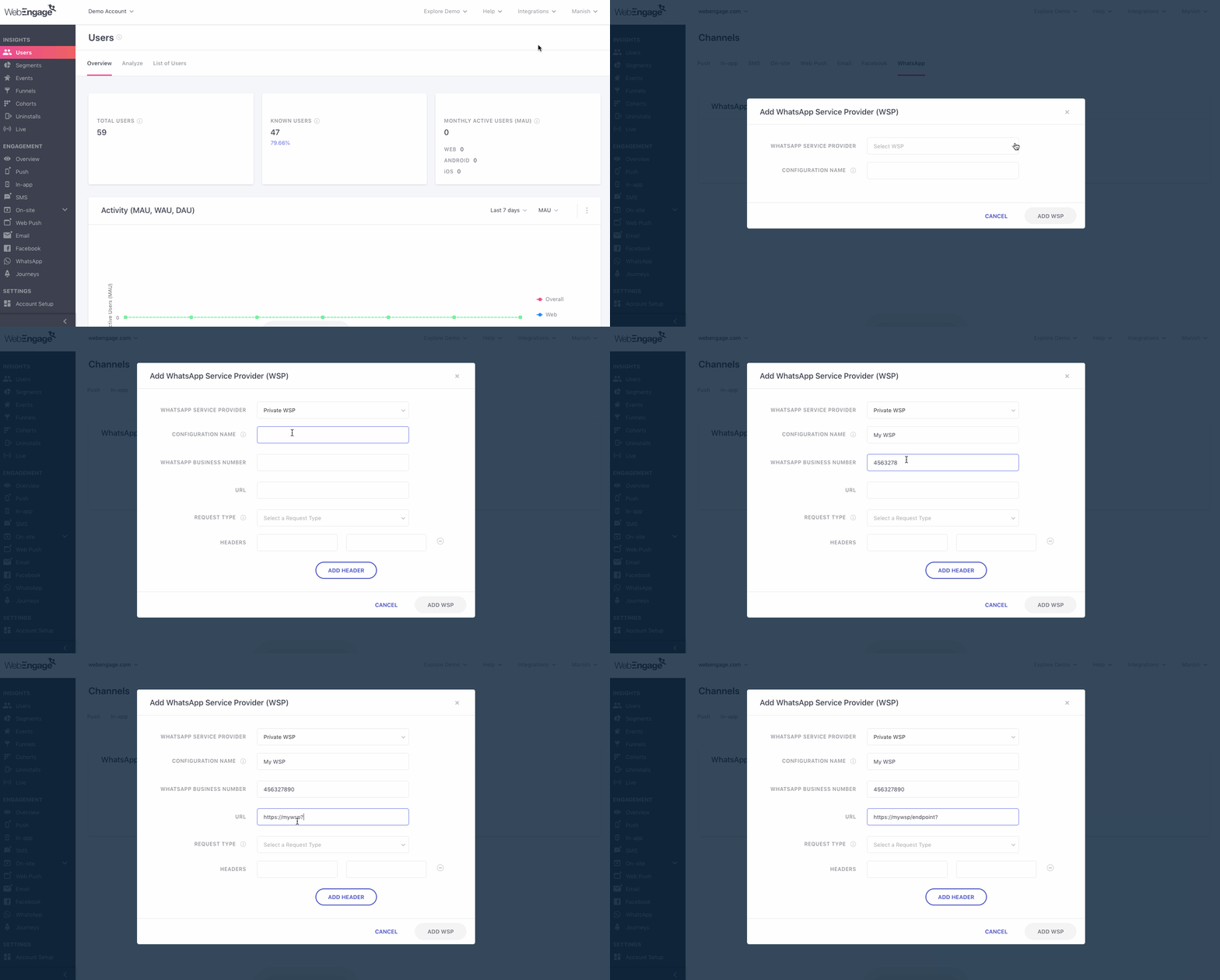
1. Access Integrations > Channels > WhatsApp
Click on Add WhatsApp Service Provider to get started. In doing so, you will be prompted by a pop-up. Click the first dropdown and select Private WSP.
2. Add Business Number:
Add the registered phone number through which users will receive your WhatsApp messages. Ex: 912249757600
Login To Netcore CPaaS Dashboard -> Choose WhatsApp -> Settings -> WhatsApp Number
3. Add Netcore URL :
https://cpaaswa.netcorecloud.net/api/v2/message/we
4. Specify Request Type:
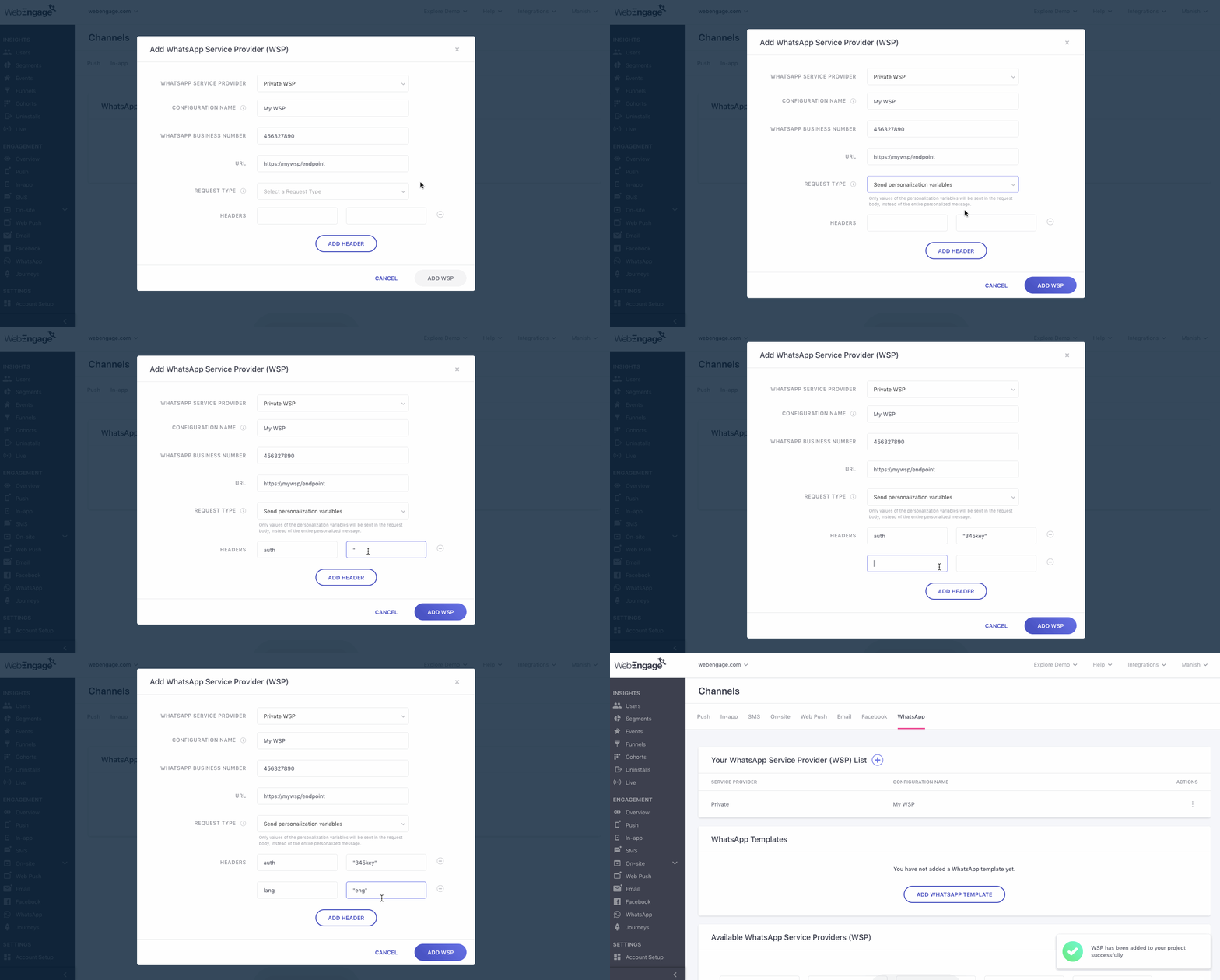
As shown above:
Select Send Personalization Variables to pass only values of the personalization variables from WebEngage to your Private WSP layer.
5. Add Custom Headers
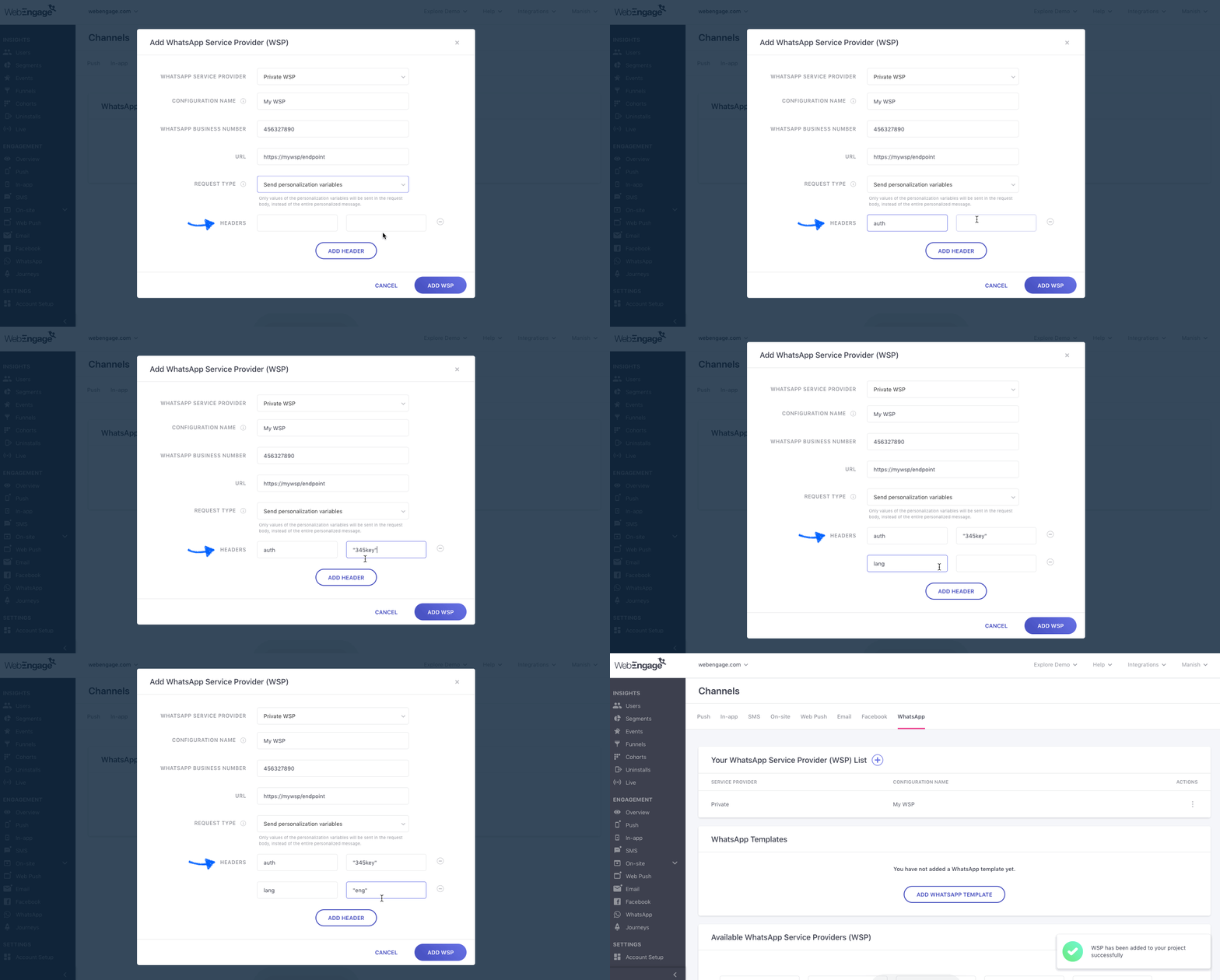
- Click Add Headers to continue adding custom data.
- Click Add below Netcore Headers value & save the details.
- Authorization : Bearer {{api key}}
You will find the api key -> Netcore WhatsApp Dashboard -> Setings -> Api Key
6. Add WebEngage Webhook URL to Private WSP
Adding the WebEngage Webhook to your decryption layer will enable us to receive Delivery Status Notifications (DSNs) for each user. This includes campaign performance indicators like messages delivered, failed, and queued.
Here's how you can go about it:
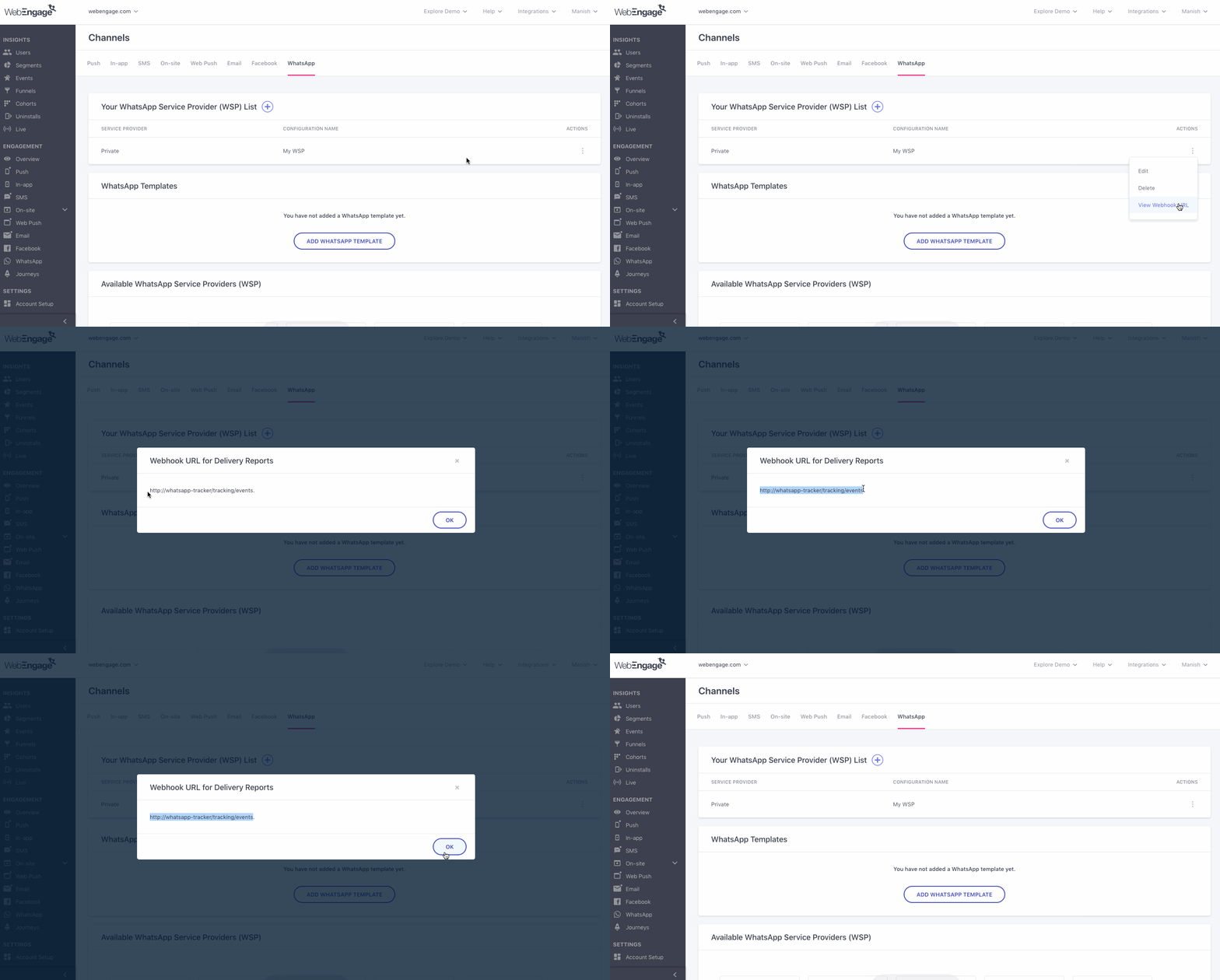
6.1. As shown above, you will find the integrated Private WSP under the section, Your WhatsApp Service Provider List.
Click the Actions overflow menu on the right side.
6.2. Click View Webhook URL.
In doing so, a pop-up containing the static endpoint URL will appear on the screen. Copy the URL and configure it as the WebEngage endpoint for sending a POST API response containing the DSN.
Step 6.3. Request your Onboarding Manager for a security token (Auth Token/ API Key).
This must be added to your DSN request as an authorization header, for example: Authorization: Bearer {{Security Token}}.
You can also drop in a message at [email protected] to get your Auth Token.
CleverTap Integration
Click on Add WhatsApp Service Provider to get started. In doing so, you will be prompted by a new page. Click the first dropdown and select Other(Generic) Option.
1. Access Settings > Channels > WhatsApp
Click on Add WhatsApp Service Provider to get started. In doing so, you will be prompted by a new page. Click the first dropdown and select Other(Generic) Option.
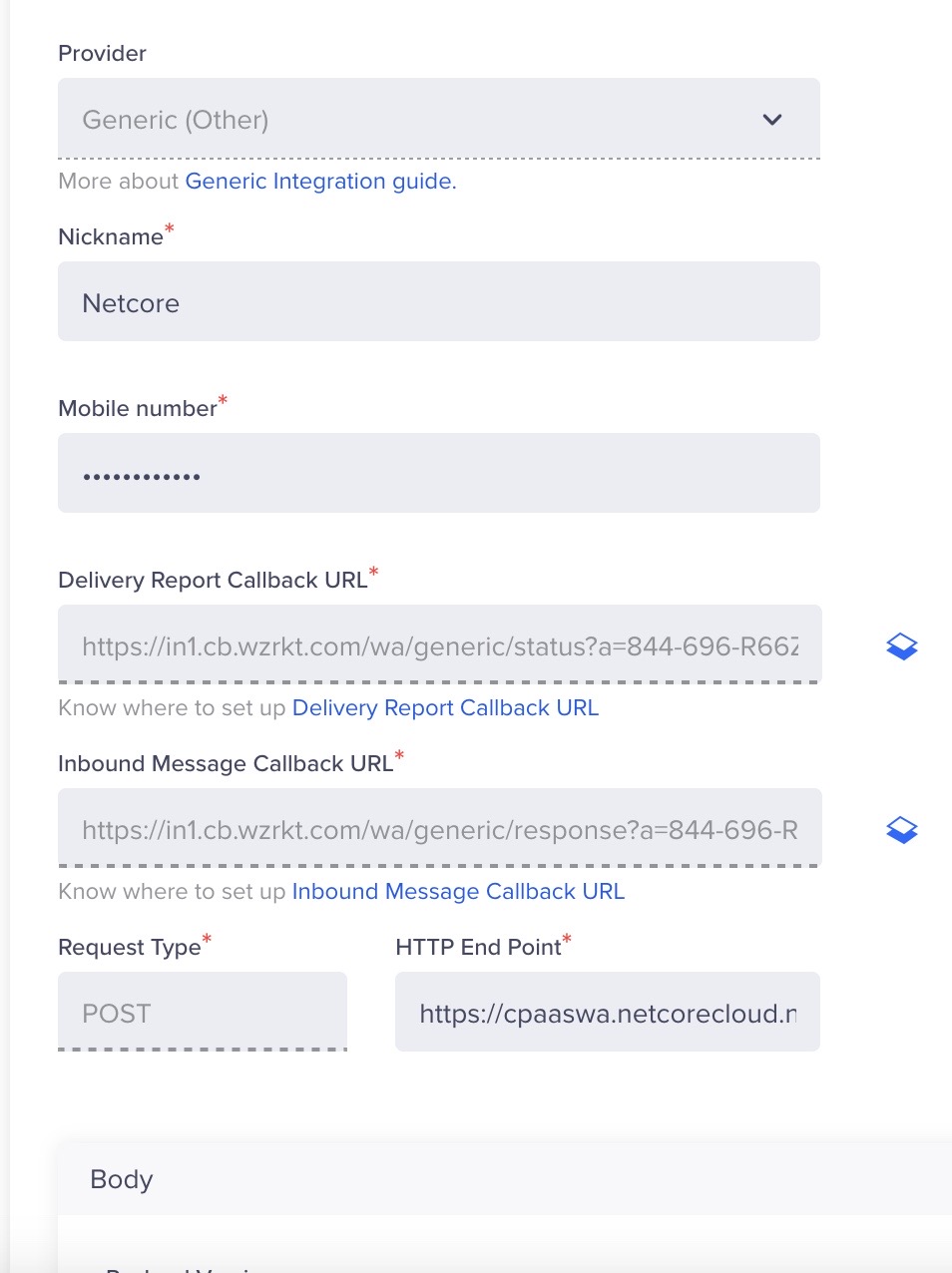
2. Configure Nickname, Mobile Number, and update Body Headers
- Enter Nickname = Netcore
- Mobile Number = Associated Business Mobile Number with country code.
- Update Body Headers with Authorisation and Authentication token, which can be found on the Netcore CPAAS panel.
- You can also drop in a message at [email protected] to get your Auth Token
Here's how you can go about it:
- Tap the checkbox. Mark this as Default.
3. Create a Netcore URL endpoint to Clevertap
- Configure the Method to "POST"
- Paste the following URL as Netcore's WhatsApp Endpoint for Clevertap:
https://cpaaswa.netcorecloud.net/api/v2/message/ct
4. Copy Delivery Report Callback URL & Inbound Message Callback URL from the Clevertap panel:
-
Log in to your Clevertap dashboard.
-
Locate and copy the Delivery Webhook Callback URL provided by Clevertap.
-
Construct the Full URL: Append the Clevertap webhook URL to the end of the Netcore WhatsApp Endpoint. The result should look similar to this example:
https://cpaaswa.netcorecloud.net/api/webhook/ct?webhook=https://in1.cb.wzrkt.com/wa/generic/status?a=566-75W-5Z7Z -
URL Encode the Full URL: Visit https://www.urlencoder.org/
-
Paste your constructed URL into the encoder and press encode.Copy the encoded result.
-
Final Encoded URL: Your final encoded URL should resemble this format: <https://cpaaswa.netcorecloud.net/api/webhook/ct?webhook=https%3A%2F%2Fin1.cb.wzrkt.com%2Fwa%2Fgeneric%2Fstatus%3Fa%3D566-75W-5Z7Z>
-
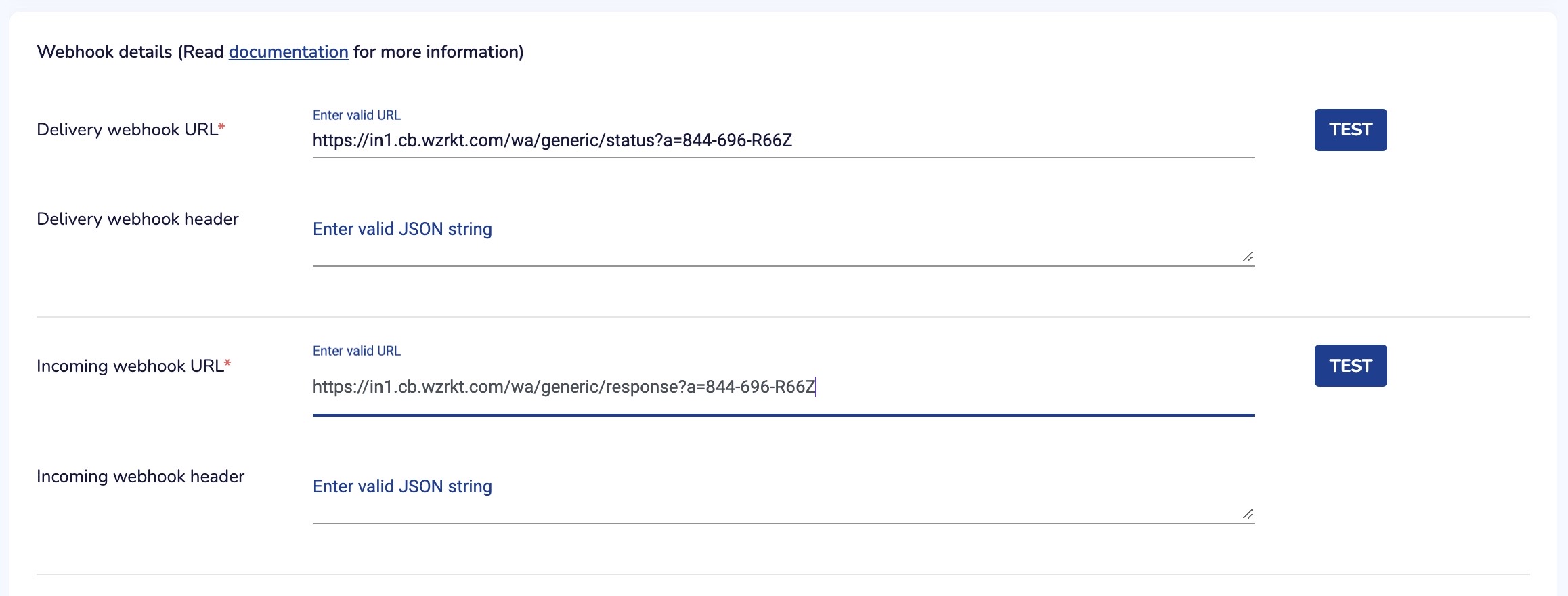
Update on CPAAS Panel:
-
Log in to cpaas.netcorecloud.com and go to the General settings page.
-
Update the copied values to the delivery webhook URL.
-
Leave the Incoming Webhook URL as it is. It's only required if you want to configure the chatbot as well.
You can also drop in a mail at [email protected] to get your Delivery and incoming webhooks updated on CPAAS Panel.
Here's how you can go about it:
5. Try a test Message :
Clevertap has now been completely integrated with Netcore WhatsApp. Send a test message to ensure everything is working correctly.