
Google RCS Overview
Rich & Interactive Messaging with Netcore CPaaS
Introduction
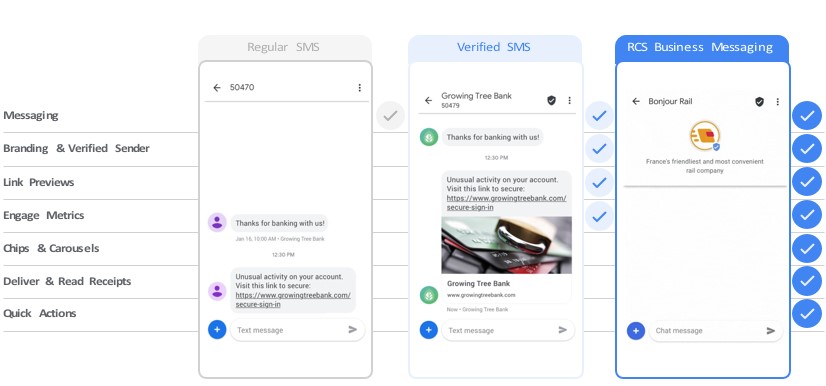
RCS Business Messaging upgrades SMS with branding, rich media, interactivity, and analytics. With RCS, businesses can bring branded, interactive mobile experiences, right to the native Android messaging app.
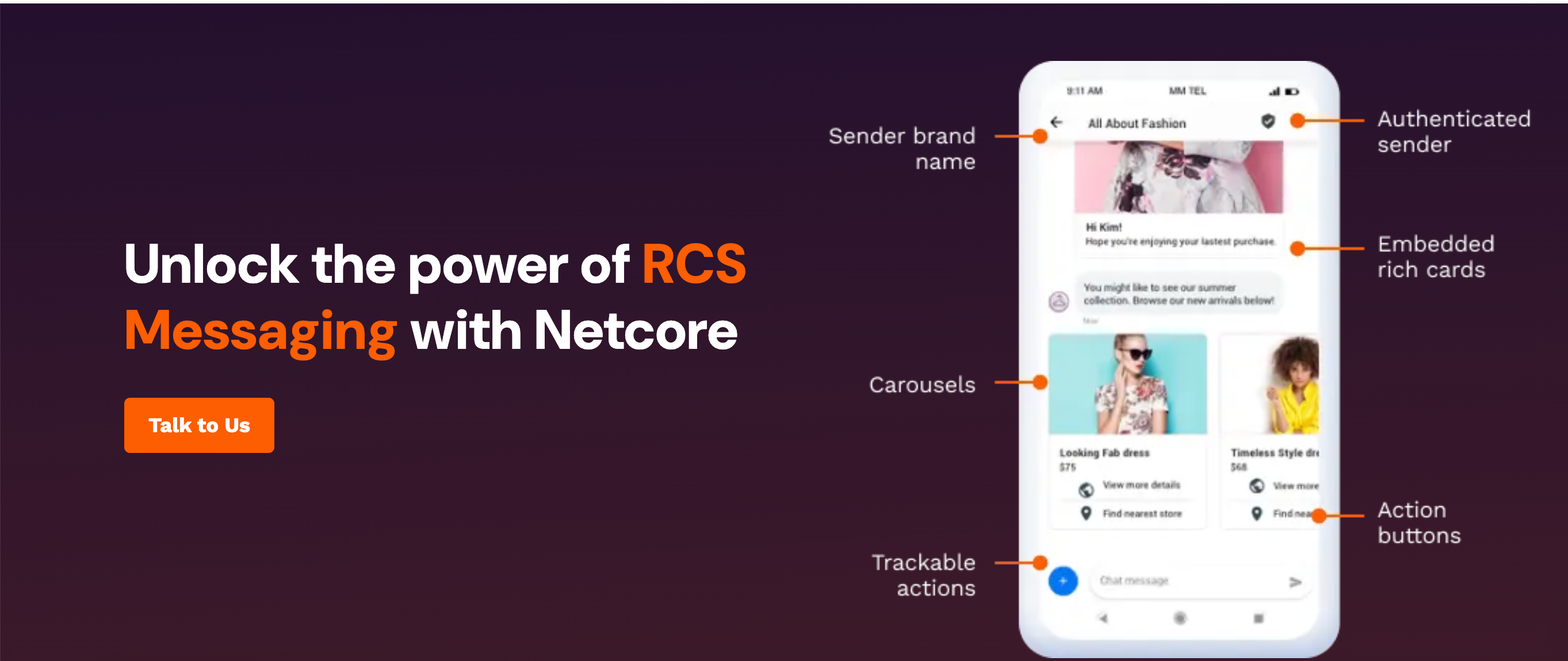
Google RCS overview
Millions of businesses rely on SMS to communicate with mobile consumers. Credit card fraud alerts, flight status updates, and package delivery notifications are common examples of business-to-consumer SMS.
Opt In Policy
- Ensure that you only text users who have explicitly opted into receiving your messages.
- Do not send unwanted promotional or commercial content, or aggressively message users.
- Do not sell, exchange or distribute user phone numbers without their consent to a third party .
- Abide by any applicable local regulations, such as specific opt-in requirements before texting mobile subscribers, record keeping or opt-out requirements.
Opt Out Policy
- Respect when users don't want messages, when a user indicates that they'd like to stop receiving messages from your Business, you need to respect their choice.
- Your Business must understand when users reply "STOP" and react appropriately.
- Your Business should understand the various ways that users might communicate their want to stop receiving messages, including any and all languages they might use to communicate their wants.
Netcore Has Configured “STOP” as a default Keyword to Opt Out and “START” as a as a default Keyword to opt in.
Supported Formats
Text
The simplest messages are made of text. Text messages are best suited to communicate information without the need for visuals, complex interaction, or response.
Rich cards
Rich cards allow you to combine media, text, and suggestions in one element. As such, media should not be the only element in a rich card, and suggested replies or suggested actions should always accompany a standalone rich card.
- Vertical rich cards
Vertical rich cards display horizontal media at the top of the card. Horizontal media should have an aspect ratio of 2:1, 16:9, or 7:3.
When you send media to a user, you should be respectful of the user's resources. When horizontal media has a 2:1 ratio, the optimal resolution for the media is 1440x720 px with a maximum recommended file size of 2 MB for images and 10 MB for video.
The optimal resolution for the media's thumbnail is 770x335 px with a recommended file size of 40 kB and a recommended maximum size of 100 kB.
- Horizontal rich cards
Horizontal rich cards display vertical media on the left or right side of the card. Vertical media should have an aspect ratio of 3:4.
When you send media to a user, you should be respectful of the user's resources. When vertical media has a 3:4 ratio, the optimal resolution for the media is 768x1024 px with a maximum recommended file size of 2 MB for images and 10 MB for video. The optimal resolution for the media's thumbnail is 250x330 px with a recommended file size of 40 kB and a recommended maximum size of 100 kB.
Rich card carousels
Rich card carousels are ideal for browsing content or various options, but they should only be used when there are multiple items to read or compare, such as devices or data plans. The first item in a carousel should be the optimal choice in any given situation, and the reasoning for why it is the optimal choice should be communicated to the user.
The suggestion chips below a carousel should expand or pivot the conversation. Suggestion chips should not repeat the options listed within the carousel and are not selection tools for the items presented in the carousel.
- Media in rich card carousels
Rich card carousels display horizontal media at the top of rich cards. Horizontal media in carousels should have an aspect ratio of 4:3.
When you send media to a user, you should be respectful of the user's resources. When the media has a 4:3 aspect ratio, the optimal resolution for the media is 960x720 px with a maximum file size of 1 MB for images and 5 MB for video. The optimal resolution for the media's thumbnail is 605x452 px with a recommended file size of 40 kB and a recommended maximum size of 100 kB.
Suggested replies & Suggested actions
Suggested replies and actions within a rich card should pertain directly to the content within that card.
Suggested replies and actions within a chip list should be ways of advancing or pivoting the conversation.
With any message sent by the business,It can provide buttons for the user for quick reply or action. These buttons are called suggestions.
These suggestions can be Inside a Card or Carousel and can be outside at the bottom of message.
The group of suggestions at the bottom of message Is called Suggestion Chip List. It has few features:
- The size of Chip List can vary from zero to 11.
- It is completely optional.
- With any new message (user or enterprise) on user device, previous suggestions will disappear.
- If user clicks on Suggested Reply (Quick Reply ), then also the chip list will disappear.
- Any Suggested Action can be clicked multiple times, while suggested Reply can be clicked only one time.
Suggested replies
Suggested replies help users respond to your agent in natural ways that it can easily react to. Every message the agent sends that requires interaction should be paired suggested replies or actions.
- Unless the interaction requires a freeform response, use suggested replies.
- Suggested replies are easier to process than freeform text and provide your agent with a method to steer conversations down an optimal path.
- Also known as the Quick Reply, Suggested replies help enterprise to guide users through conversations by providing responses that the agent knows how to react to.
Suggested actions
Suggested actions allow an agent to hook into native device actions and provide a tightly integrated experience for the user.
When relevant, suggested actions can make calling customer support or finding a location on the map easy, but don't overwhelm users with options.
-
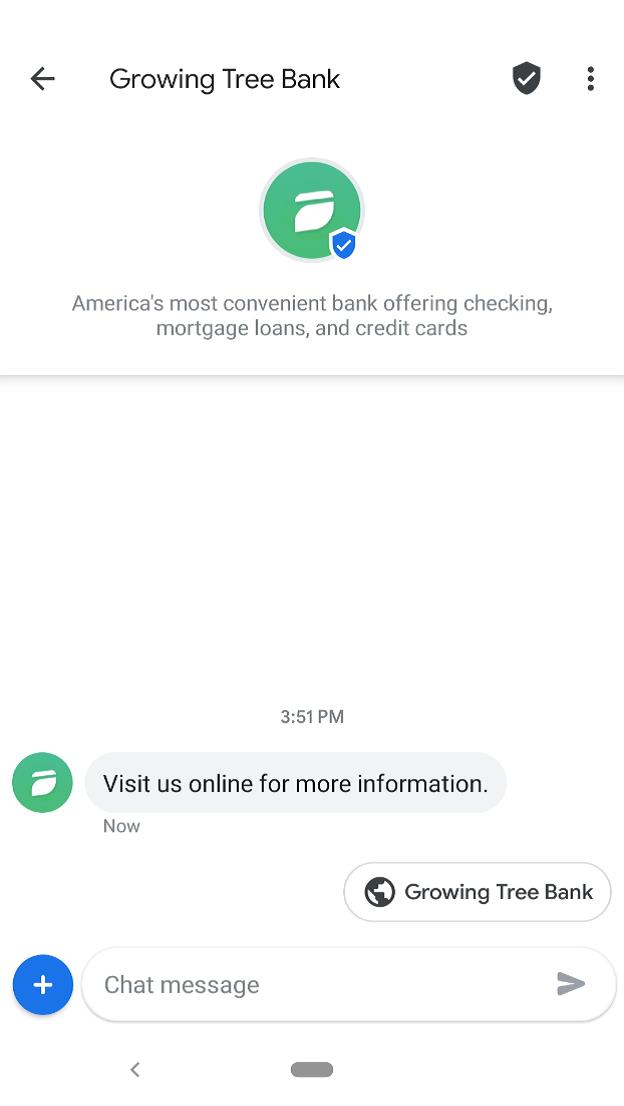
Open URL: The Open URL action opens the user's web browser to the specified URL. If an app is registered as a default handler for the URL, the app opens instead, and the icon for the action is the app's icon.
-
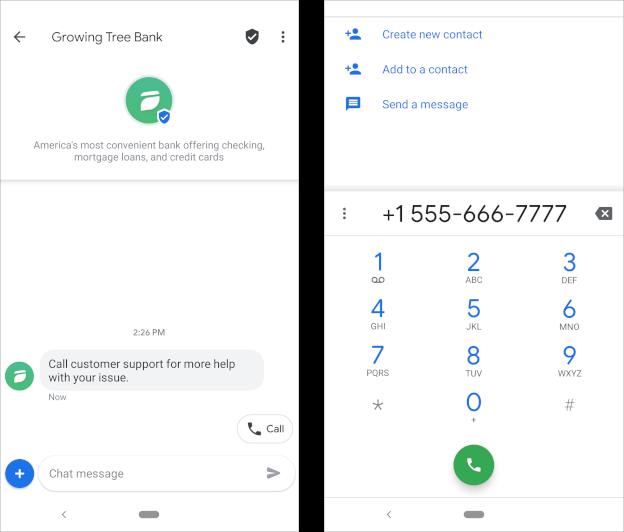
Dial Number: The Dial action guides the user to dial a phone number that your agent specifies.
-
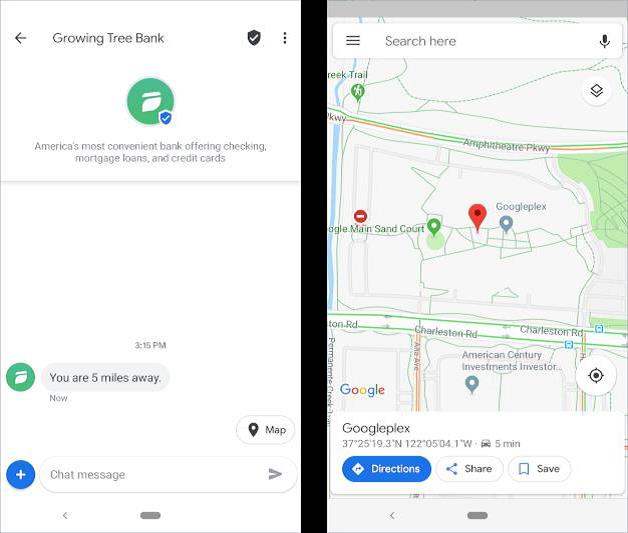
View Location: The View location action displays a location in the user's default map app. You can specify the location either by latitude and longitude or with a query based on the user's current location.
-
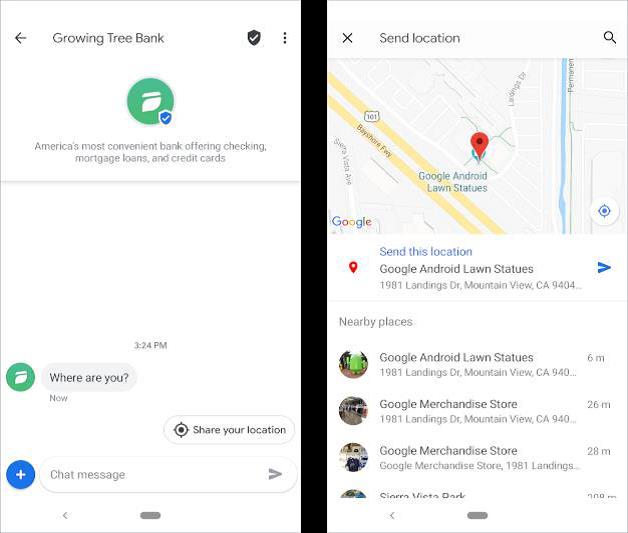
Share Location: The Share location action lets the user send a location to your agent.
-
Create Calendar Event: The Create Calendar Event action opens the user's calendar app and begins to create a new event with the specified information
Only provide actions that are related to the most recent message, and only provide as many actions as necessary.
Limit the number of suggested actions and suggested replies to what is useful and useable for the user in given the context.
Click here to use Google RCS with Netcore