
Live Feed
Monitor the real-time status of all WhatsApp campaigns sent through the CPaaS dashboard.
Monitor the real-time status of all WhatsApp messages sent through the CPaaS dashboard. The Live Feed contains two sections:
Login to CPaaS WhatsApp dashboard and navigate to Live Feed to open the Live Feed section.
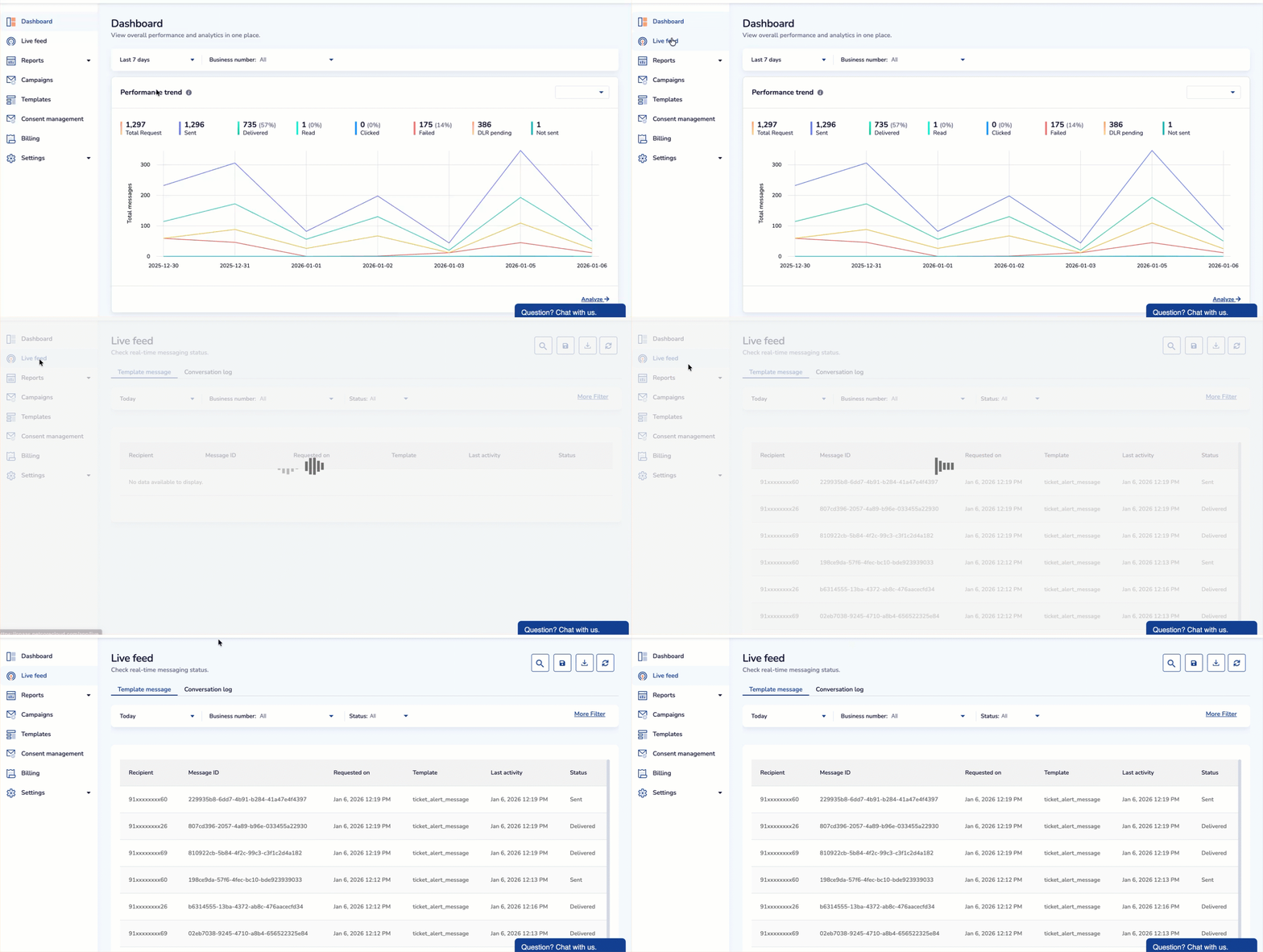
Navigate to Live Feed
Functionality
Use the Live Feed dashboard filters and actions to monitor, search, and manage WhatsApp message logs in real time. The available functionality helps narrow down results and perform quick actions based on message data.
Refer to the given table to know the other functionalities available on the Live feed dashboard.
Business Number
Filter messages based on your registered business numbers. If multiple numbers are configured in the system, use the dropdown to select a specific number or view data from all business numbers.
Status
Filter messages based on their delivery status. Available only for Template message tab. Available statuses include:
| Status | Description |
|---|---|
| All | Includes messages across all statuses, including sent, delivered, read, clicked, failed, and not sent. |
| Sent | Messages that are successfully sent from the platform but have not yet been delivered to the recipient. |
| Delivered | Messages that are successfully delivered to the recipient’s device but has not been read yet. |
| Read | Messages that the recipient has opened and read. |
| Clicked | Displays that the recipient has clicked on a link or a button included in the message. |
| Failed | Messages that were not delivered due to issues such as incorrect recipient number, WhatsApp restrictions, or network failures. |
| Not Sent | Messages that were not processed due to reasons like missing template approval, or system errors. |
Each status helps you track the message journey and identify delivery or engagement issues.
Search
Use the search icon to locate specific messages by keyword, message ID, recipient number, or template name. This enables quick access to specific records without scrolling through the entire feed.
Download
Click the Download icon to export message logs. This is useful for auditing, reporting, or further analysis outside the platform. Downloaded files are typically in CSV or Excel format.
Save
Click the Save icon to save the current view or filters applied to the dashboard. This lets you quickly reapply frequently used filters or views without reconfiguring them every time.
Available only for Template message tab.
Refresh
Use the Refresh icon to reload the Live Feed and fetch the most recent message activity. This ensures you're viewing real-time data as it updates.
More Filter
Click on More Filter to apply advanced filters for granular control. Available only for Template message tab.
Multiple filters can be added by clicking the + Add Filter option, allowing compound filter conditions for detailed analysis.
Currently supported filters include:
- Tags: Filter messages by assigned tags for categorization or campaign tracking.
- Template: Filter messages by specific WhatsApp templates used during campaigns.
Template Message
The Template Message tab provides a detailed view of all WhatsApp template-based messages sent via the CPaaS dashboard. It displays details such as Message ID, Recipient Number, Template Name, Last Activity, and Status. This section helps track the performance and delivery of template messages.
The Template Message tab displays a structured table with detailed information for each WhatsApp template-based message sent via the CPaaS dashboard. Below is a description of each column in this table:
| Column | Description |
|---|---|
| Recipient | Displays the recipient’s phone number. For privacy and security, only the first few and last two digits are shown (e.g., 91xxxxxxx60). This helps identify the contact without exposing sensitive data. |
| Message ID | A unique identifier automatically generated for each message. This ID is useful for tracking individual message logs, troubleshooting, or referencing in support tickets. Example: 229935b8-6dd7-4b91-b284-41a47e4f4397 |
| Requested On | The timestamp indicating when the message request was submitted from the CPaaS dashboard. It includes both the date and time for accurate tracking. Example: Jan 6, 2026 12:19 PM |
| Template | The name of the WhatsApp message template used. Template names help identify the purpose or content type of the message (e.g., ticket_alert_message). |
| Last Activity | Shows the most recent system update or delivery status event for the message (e.g., when it was sent, delivered, or read). This helps track the current progress or final state of each message. |
| Status | Indicates the current delivery status of the message. Common statuses include: |
Conversation Log
The Conversation Log tab displays the history of message exchanges between your business and the recipients. This includes both incoming and outgoing messages (e.g., replies, responses to notifications). Each row represents a single message within an ongoing conversation.
Here’s a table with descriptions for each header.
| Header | Description |
|---|---|
| Sender | Indicates the originator of the message. This can be either your business (outbound messages) or the recipient (inbound replies). |
| Recipient | Displays the phone number or contact identifier of the recipient who received the WhatsApp message. Example: 919503725549 |
| Message Type | Identifies the type of message exchanged. Common types include: Text: A plain text message . Media: Images, videos, or audio files. Document: PDF or other file attachments. Template: Pre-approved WhatsApp message templates. |
| Content | Displays the actual message content. For media or file types, it may show a preview, file name, or download link. |
| Date & time | Indicates when the message was sent or received. Helps track the timeline of the conversation. |
| Status | Displays the current delivery status of the message, such as Delivered, Read, Failed, or Pending. |