
WhatsApp Multi Product Messages
Multi-Product Messages Introduction
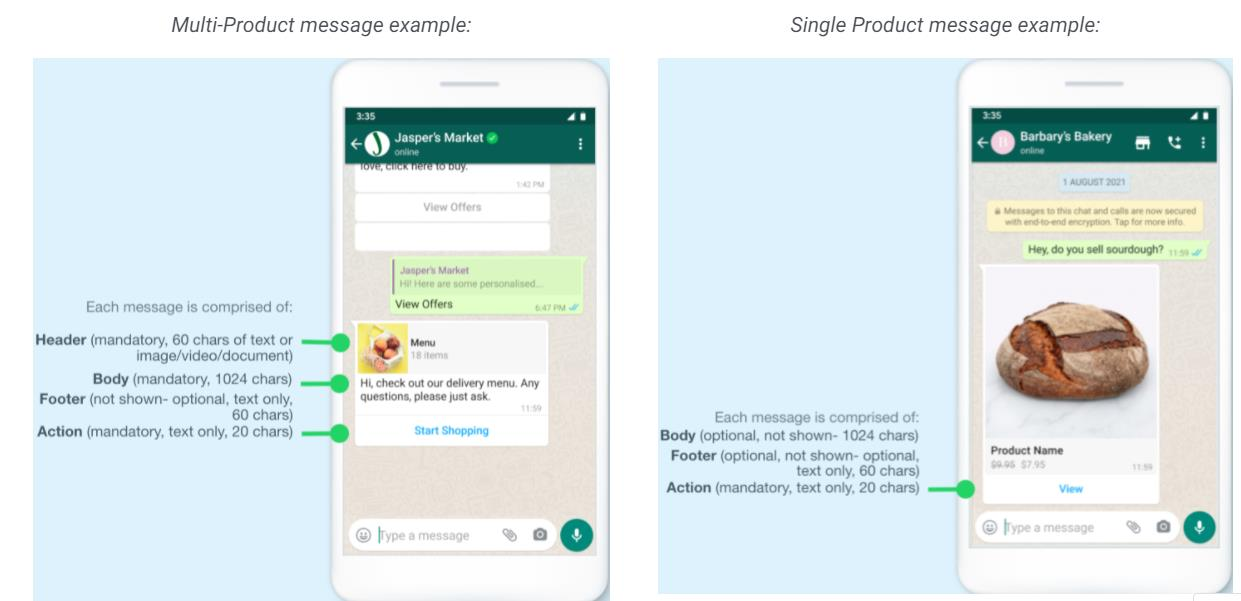
We are excited to launch the new Multi-Product and Single Product Messages, which enables businesses a simple and personal way to showcase products and services to their customers without leaving the chat.
Businesses can share products in real-time, up to 30 items with Multi-Product Messages or just one item with Single Product Messages. Customers can add items to their cart right from WhatsApp, then send them to the business to define the next steps such as taking payments.
-
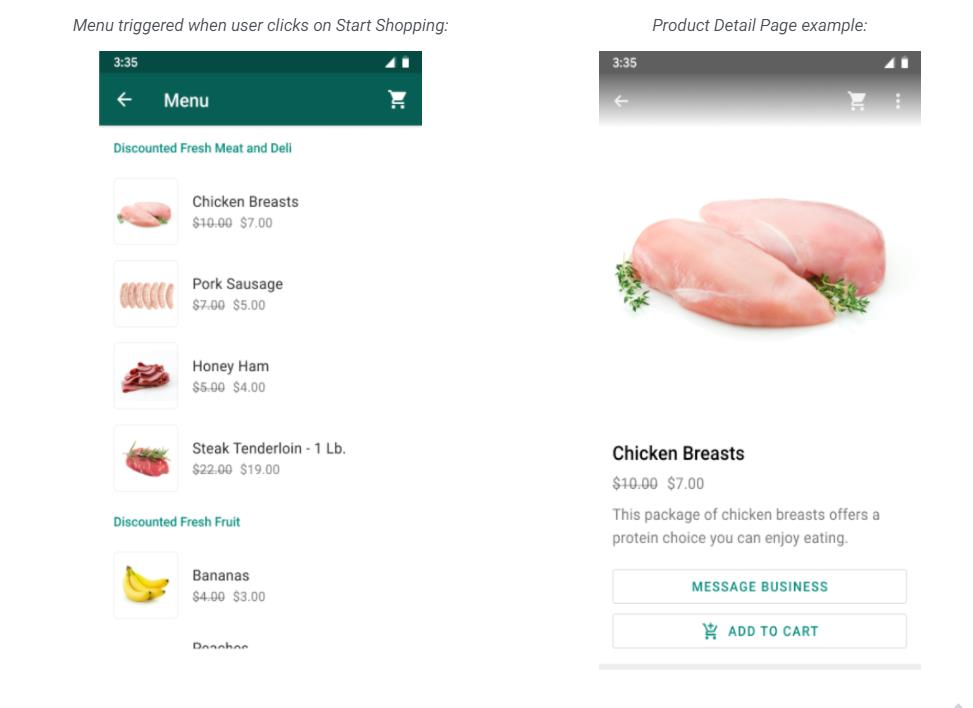
Single Product freeform Messages: Messages with a single product item from your business’ inventory. The product is displayed in a Product Detail Page (PDP) format.
-
Multi-Product freeform Messages: Messages containing a selection of up to 30 items from your business’ inventory.
-
Catalog Template Messages: Messages containing your entire business’ inventory.
-
Multi-Product Template Messages: Messages containing a selection of up to 30 items from your business’ inventory, combined with your product title.
Multi-Product and Single Product Messages are the best experiences for use cases that are curated to the customer e.g. personalized recommendations based on previous purchases.
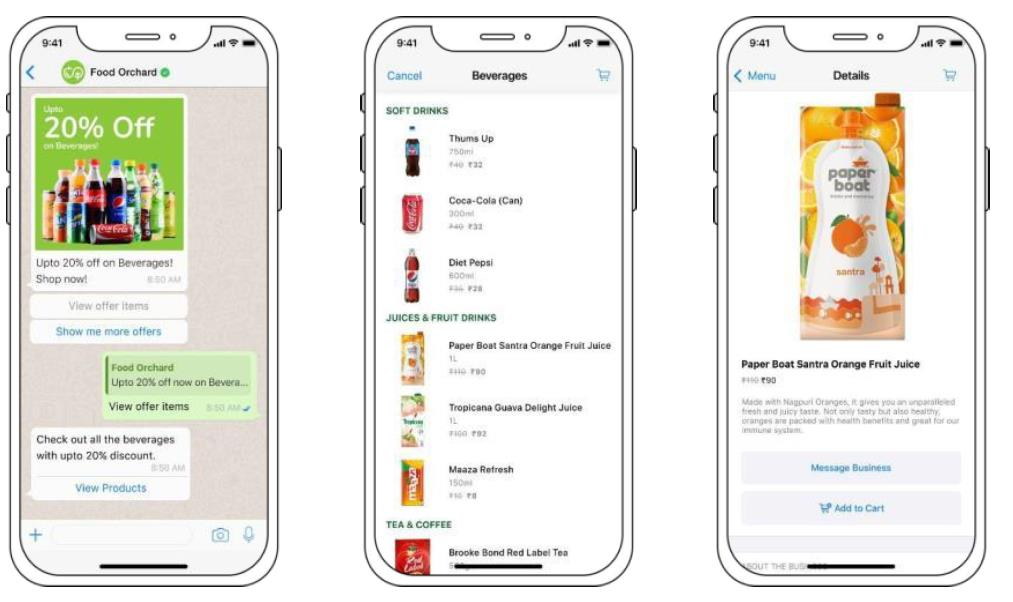
NoteSingle & Multi product messages are applicable to only 2-way messaging and do not require a template approval.
These messages cannot be sent as notifications but can only be sent as part of existing conversations.
Prerequisites to get started
To get started, follow these four steps. The first 3 steps are one-time and will not need to be repeated for future commerce launches.
Entity/Business details
| Required Details | Description |
|---|---|
| Entity Name | A business' legal name. |
| Entity Type | Available options are:"Limited liability partnership","Sole proprietorship"," Partnership","Public Company","Private Company","Other" |
Customer care details
| Required Details | Description |
|---|---|
| Email id | An email that customers can use to reach the business. |
| Landline number/Mobile Number | A landline/mobile phone number customers can use to reach the business. |
Grievance officer details
| Required Details | Description |
|---|---|
| Landline number/Mobile | The name of the business's grievance officer. |
| The email of the business's grievance officer. | |
| Landline number/Mobile Number | A landline/mobile phone number for the business grievance officer. |
Share above Complaince Info with [[email protected]](mailto:[email protected]) to get started with MPM.
NoteFor more info refer here i.e Click Here to Know more on How to comply with the laws for selling online in India using WhatsApp Business API.
1. Create a Catalog
A catalog is a container that holds information about all the items/products you want to advertise or sell on WhatsApp.
NoteWhere possible, we recommend that you keep all of your items in one catalog instead of creating multiple catalogs. Click Here For More Details.
Before you begin:
- Create a Facebook Page for your business if you don't have one yet.
- Create a Business Manager account so you can assign your catalog to your business. Make sure that you have admin access.
Create a New Catalog
a) Go to Commerce Manager.
b) Start creating your catalog:
c) If this will be your first catalog, click Get Started. Select Create a catalog and then click Get Started.
d) If you already have at least one catalog, you'll see all of your catalogs listed.
Select + Add Catalog to create a new one.
e) Select the type of inventory you advertise or sell, then click Next.
f) E-commerce (products) only: Choose how you want to add items to your catalog:
g) Select Upload product info if you plan to add items yourself in Commerce
Manager.
h) Select Connect a partner platform if you host your items on a partner platform that has integration with Facebook. Select a platform and follow the link to its website to complete setup and import items to Facebook. Learn more about importing items from a partner platform.
i) Select the Business Manager account that your catalog belongs to. This unlocks more ways to use your catalog than selecting a personal account and enables you to assign other people permission to work on the catalog. To select a Business Manager account, you must be a business admin.
j) Enter a name for your catalog.
k) Click Create.
You've created a new catalog. Now you can add your items. There are several ways to add items to a catalog. Compare methods to choose the best option for you.
Ways to add items to a catalog:
- You'll find your catalog under the Catalog tab in Commerce Manager.
- After you add items, you can view them in your catalog's Items tab and see the methods you used in the Data sources tab. You'll need to continue managing items in your catalog the same way you added them.
Add items in Commerce Manager/Catalog:
There are four main ways to add items to your catalog in Commerce Manager
- Manual: Add items using a manual form in Commerce Manager. Click here for more details
- Data feed: Upload a data feed (spreadsheet file) to add items in bulk. You can upload a file once or set up scheduled uploads to happen on a regular basis. We support CSV, TSV and XML file formats as well as Google Sheets. Click here for more details
- Facebook pixel: Import and update items automatically from your website. This method is more complex to set up. You may need help from a developer to install microdata tags on your website.
- If you host your inventory on a partner platform that has an integration with Facebook, you can import your items from a partner platform. You can then continue to manage your inventory on your partner platform and it will sync automatically with Facebook.
NoteAs mentioned earlier there are several ways to add items to a catalog. One of the ways is to add items manually in the Commerce Manager.
We recommend this option if you have fewer than 50 items and your inventory information doesn't change very often.
2. Share Catalog access with Partner & Connect a Catalog to Your WhatsApp Business Account
If you’re conducting commerce on WhatsApp, you can connect a catalog to your WhatsApp business account.
Connecting a catalog allows you to send Single Product Messages and Multi Product Messages to your customers on WhatsApp.
Your customers can view your product items, send you messages and send carts that contain your products and services on WhatsApp.
Note:If you own a business conducting commerce on WhatsApp in India, you’re required to provide additional information to customers in your Business Profile and Catalog.
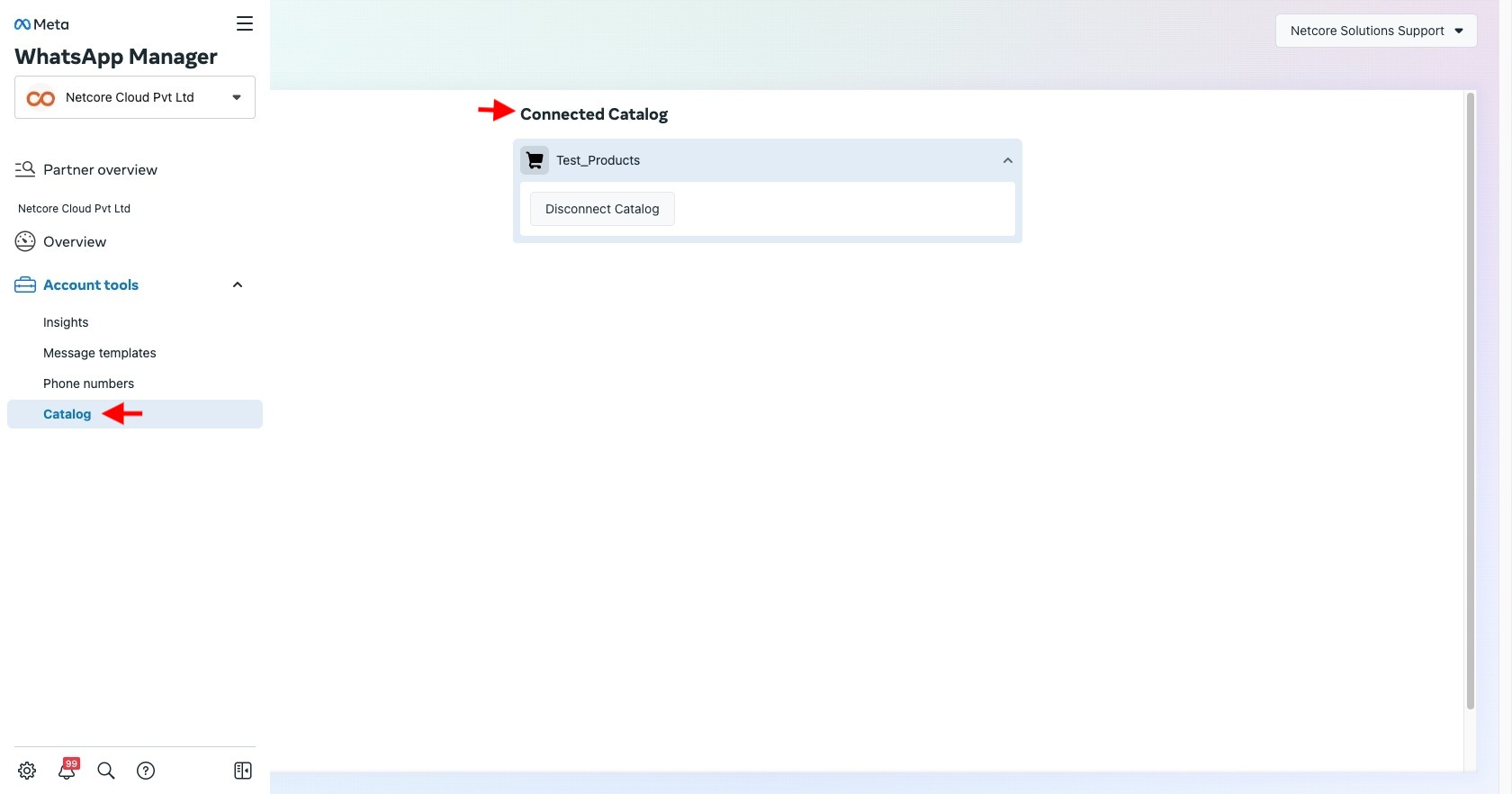
Kindly share the catalog ID with the Netcore Support Team. This catalog ID will be linked to your WABA by the Netcore team.
Share Catalog Access with BSP
Assign a Catalog to your BSP.
-
Go to your Business Settings and select your business.
-
Select Data Sources.
-
Select Catalogs and select the name of your catalog.
-
Select Assign Partner.
-
Once you choose to assign a partner at step 6.
Users will get two options.
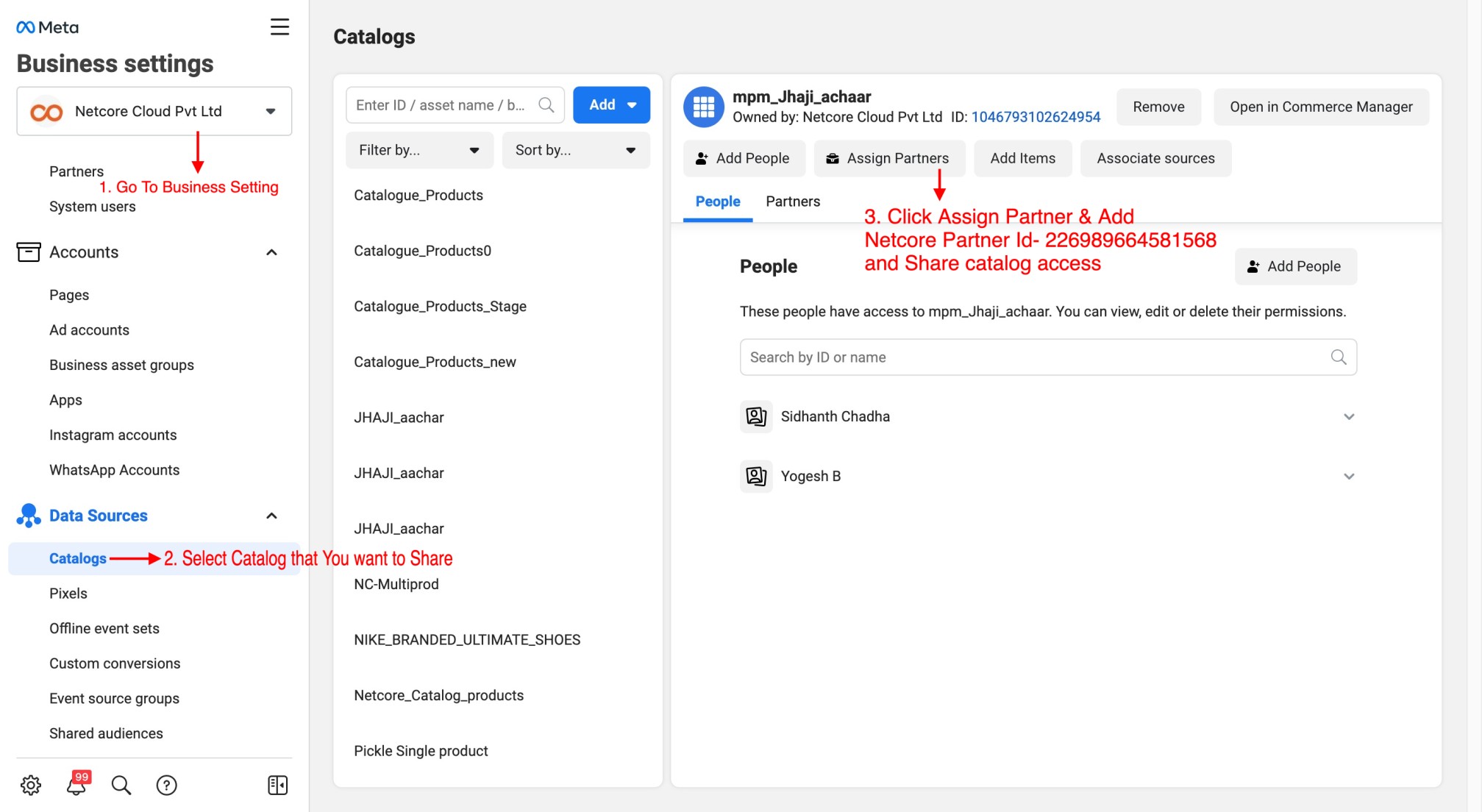
Select Business ID (Refer to step 6) and Generate a link (Refer to step 7)*
-
Click Select Business ID
a. Enter Business ID as 226989664581568 and under the Full control permission section, select Manage catalogue option.
b. Select Next, and then Close.
c. Once the request is submitted, write to [[email protected]](mailto:[email protected]) with the subject line: Approve catalog request and the mail body should contain the Catalogue Name and ID. We will approve the partner request and also connect the Catalog to the WhatsApp account.
-
Click Generate a link.
a. Select Get link to share to generate a link.
b. Select the Manage catalogue task.
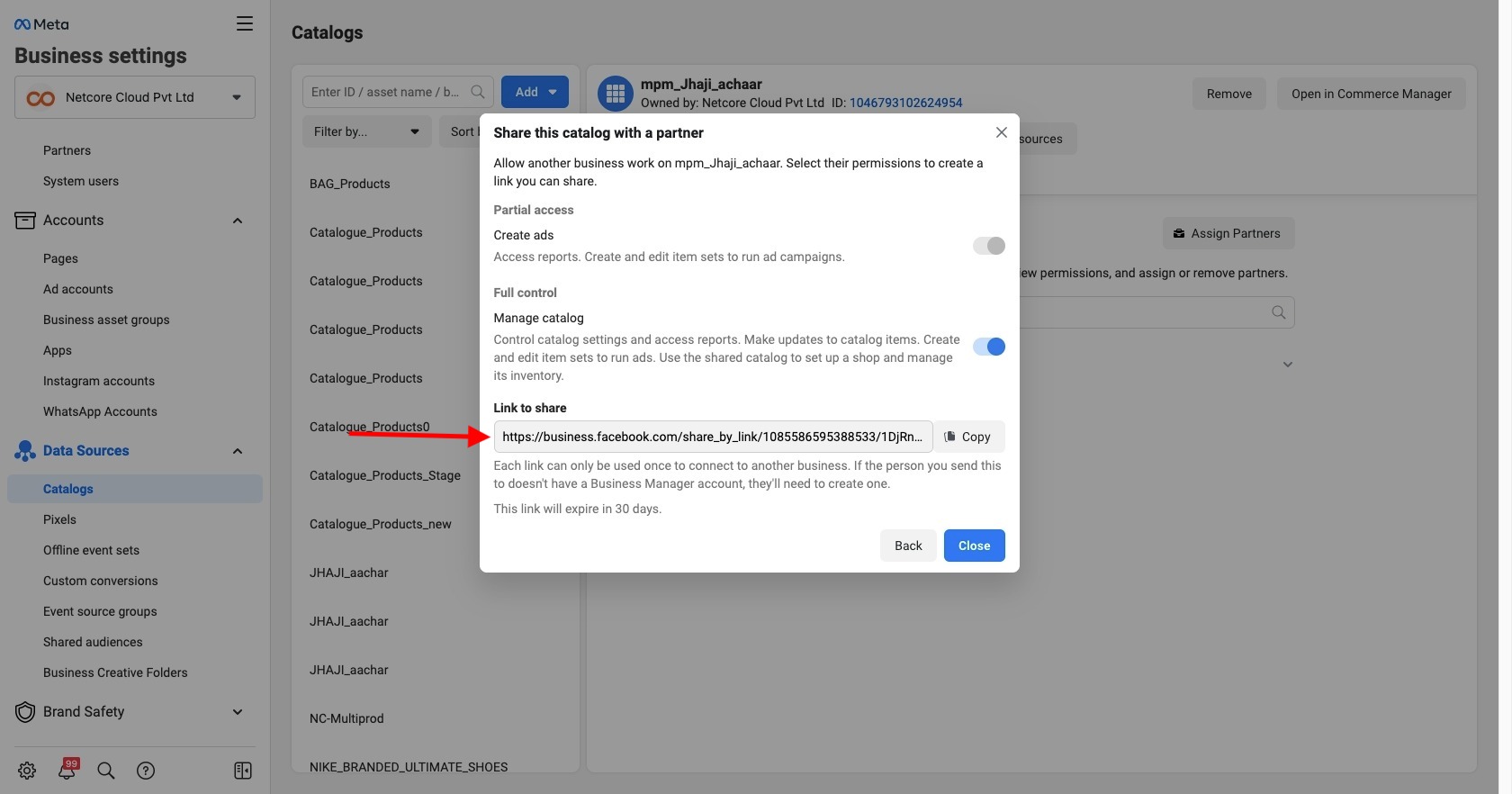
c. Send the link to us at [[email protected]](mailto:[email protected]) along with the Subject line: Approve catalog request. Netcore Will Connect the Respective Catalog with Your Waba.
3. Share Products With Customers
- Multi-Product Messages: Messages containing a selection of up to 30 items from a business’ inventory.
- Single Product Messages: Messages with a single product item from the business inventory. The product is displayed in a Product Detail Page (PDP) format.
Both Multi-Product Messages and Single Product Messages are types of interactive
messages.Users that receive Multi and Single Product Messages can perform 3 main actions:
- View products: Customers can see a list of products or just one product. Whenever a user clicks on a specific item, WhatsApp fetch the product's latest info and display the product in a Product Detail Page (PDP) format. Currently, PDPs only support product images —any videos and/or GIFs added to the product won’t be displayed in the PDP.
- Add products to a cart: Whenever a user adds a product to the shopping cart, WhatsApp fetches the item’s latest info. If there has been a state change on any of the items, WhatsApp display a dialog saying “One or more items in your cart have been updated. A cart persists in a chat thread between business and customer until the cart is sent to the business —See Shopping Cart Experience for details.
- Send a shopping cart to the business: After adding all needed items, customers can send their cart to the business they’re messaging with. After that, businesses can define the next steps, such as requesting delivery info or giving payment options.
Currently, these types of messages can be received in the following platforms:
- iOS: 2.21.100 (Multi-Product Messages) and 2.21.210 (Single Product Messages).
- Android: 2.21.9.15 (Multi-Product Messages) and 2.21.19 (Single Product Messages).
- Web: The web client that supports these features has been launched.
Multi-Product Messages and Single Product Messages cannot be sent as
notifications. They can only be sent as part of existing conversations.
Shopping Cart Experience
After viewing products, a customer can add them to their shopping cart and send that cart to a business. For the purposes of commerce on WhatsApp, a shopping cart:
- Is unique to a person/business chat thread in a specific device: Only one cart is created per chat thread between customer and business and carts do not persist across multiple devices. Once a cart is sent, the customer can open another cart with the business and start the process again.
- Has no expiration date: The cart persists in the chat thread until it is sent to the business. Once sent, the cart is cleared.
- Customers can add up to 99 units of each single catalog item to a shopping cart, but there is no limit on the number of distinct items that can be added to a cart.
- Once a cart has been sent, no edits can be made. Customers can send a new cart if they need new items, or would like to change their order. Businesses cannot send carts to customers.
API details to get started
Assemble the Interactive Object & Send SPM & MPM to the WhatsApp users
Single Product freeform Messages
To send a Single Product Message, assemble an interactive object of type product with the following components:
Since these are supported by Text messages the method will be “SendMessage”
- API Endpoint: To send a single product message on WhatsApp in response to a customer’s inbound message, the API request is made to this endpoint:
- Netcore WhatsApp Dashboard -> Settings -> Api Key
- Base URL: https://cpaaswa.netcorecloud.net/api/v2/message/nc/message/
- Headers: Authorization:string (required)
- Example: Bearer eyJ0eXAiOiJKV1QiLCJhbGciOiJIUzUxZXRjb3Jlc2FsZ`
{"message": [
{
"recipient_whatsapp": "919999*******",
"message_type": "interactive",
"recipient_type": "individual",
"source": "e4aba266d56a3726c36a2053d70c989d",
"x-apiheader": "custom_data",
"type_interactive": [
{
"type": "product",
"body": "text-body-content",
"footer": "text-footer-content",
"catalog_id": "483833899912685",
"product_retailer_id": "JHAJI-AMLA-250"
}
]
}
]
}}
Multi-Product freeform Messages
To send a Multi-Product Message, assemble an interactive object of type product_list with the
following components.
{"message": [
{
"recipient_whatsapp": "919999339598",
"message_type": "interactive",
"recipient_type": "individual",
"source": "e4aba266d56a3726c36a2053d70c989d",
"x-apiheader": "custom_data",
"type_interactive": [
{
"type": "product_list",
"header": {
"type": "text",
"text": "text-header-content"
},
"body": "text-body-content",
"footer": "text-footer-content",
"catalog_id": "483833899912685",
"sections": [
{
"title": "KUCHHA-MANGO",
"product_items": [
{
"product_retailer_id": "JHAJI-KMMANGO-250"
},
{
"product_retailer_id": "JHAJI-KMKUCCHA-250"
}
]
},
{
"title": "KARONDA",
"product_items": [
{
"product_retailer_id": "JHAJI-KARONDA-250"
},
{
"product_retailer_id": "JHAJI-OAL-250"
}
]
}
]
}
]
}
]
}
Multi-Product Catalog Messages
    "message": [
        {
            "recipient_whatsapp": "916361467892",
            "message_type": "catalog_template",
            "recipient_type": "individual",
            "source": "",
            "x-apiheader": "",
            "type_template": [
                {
                    "name": "test_catalog",
                    "header_attributes": [
                        "header"
                    ],
                    "language": {
                        "locale": "en",
                        "policy": "deterministic"
                    },
                    "attributes": [
                        "https://www.google.com",
                        "ravi",
                        "kiran"
                    ]
                }
            ],
            "type_catalog_template": {
                "thumbnail_product_retailer_id": "J11143032"
            }
        }
    ]
}
Multi-Product Template Messages
    "message": [
        {
            "recipient_whatsapp": "919823329163",
            "message_type": "mpm_template",
            "recipient_type": "individual",
            "source": "",
            "x-apiheader": "",
            "type_template": [
                {
                    "name": "newone",
                    "header_attributes": [
                        "header"
                    ],
                    "language": {
                        "locale": "en",
                        "policy": "deterministic"
                    }
                }
            ],
            "type_mpm_template": {
                "thumbnail_product_retailer_id": "J11124551",
                "sections": [
                    {
                        "title": "Hetvi 1",
                        "product_items": [
                            {
                                "product_retailer_id": "JVS1204476"
                            },
                            {
                                "product_retailer_id": "J11124551"
                            }
                        ]
                    },
                    {
                        "title": "Uday 2",
                        "product_items": [
                            {
                                "product_retailer_id": "J11136035"
                            },
                            {
                                "product_retailer_id": "J11143032"
                            }
                        ]
                    }
                ]
            }
        }
    ]
}'
4. Receive Responses From Customers
Inbound messages sent by customers to your WhatsApp Business Phone Number will be sent to your webhook endpoint via HTTP/HTTPS.
Netcore does not store incoming messages; it is sent to the webhook endpoint which can either be a customer engagement tool, bot application or any other application as desired, provided the application can accept the webhook events in the formats mentioned below.
After receiving Multi- or single-product messages, users can request more information about a product, add products to their shopping cart, and place an order. The best way to track a customer’s response to a message is by checking the webhooks alerts received for a specific message.
Webhooks
Webhooks are user-defined HTTP callbacks that are triggered by specific events, such as an inbound message from a customer, i.e., a customer sends a text message or media attachment on WhatsApp. Whenever that trigger event occurs, the Netcore Messaging API registers the event. It immediately sends a notification (POST request) to the Callback URL specified in your account settings, indicating when you receive a message.
Please reach out to your support team to set the Callback URL for your account, allowing you to receive inbound message webhook events. Only one callback URL can be specified per account.
On Sending a SPM/MPM Message
"netcoresalesexp-{ ""statuses"": [ { ""conversation"": { ""expiration_timestamp"": 1653545700, ""id"": ""4d539114764ad6c0ba297bab4f38b083"", ""origin"": { ""type"": ""business_initiated"" } }, ""id"": ""gBEGkZZkWTdTAgkgfls58U-IFIo"", ""pricing"": { ""billable"": true, ""category"": ""business_initiated"", ""pricing_model"": ""CBP"" }, ""recipient_id"": ""919664593753"", ""status"": ""sent"", ""timestamp"": ""1653477575"", ""type"": ""message"" } ]}

netcoresalesexp-{ ""statuses"": [ { ""conversation"": { ""id"": ""4d539114764ad6c0ba297bab4f38b083"", ""origin"": { ""type"": ""business_initiated"" } }, ""id"": ""gBEGkZZkWTdTAgkgfls58U-IFIo"", ""pricing"": { ""billable"": true, ""category"": ""business_initiated"", ""pricing_model"": ""CBP"" }, ""recipient_id"": ""919664593753"", ""status"": ""delivered"", ""timestamp"": ""1653477576"", ""type"": ""message"" } ]}

netcoresalesexp-{ ""statuses"": [ { ""id"": ""gBEGkZZkWTdTAgkgfls58U-IFIo"", ""recipient_id"": ""919664593753"", ""status"": ""read"", ""timestamp"": ""1653477839"", ""type"": ""message"" } ]}
"
On Messaging business
"
{
  ""contacts"": [
    {
      ""profile"": {
        ""name"": ""akshay""
      },
      ""wa_id"": ""919664593753""
    }
  ],
  ""messages"": [
    {
      ""context"": {
        ""from"": ""912249757677"",
        ""id"": ""gBEGkZZkWTdTAyBwcm9kdWN0X2lucXVpcnk6NTQyNTg3NzUyNzQyMjQ5MA"",
        ""referred_product"": {
          ""catalog_id"": ""483833899912685"",
          ""product_retailer_id"": ""JHAJI-AMLA-250""
        }
      },
      ""from"": ""919664593753"",
      ""id"": ""ABEGkZZkWTdTAhCGf2sudqgZ6f90YfI9TN3U"",
      ""text"": {
        ""body"": ""Messaging business""
      },
      ""timestamp"": ""1653478011"",
      ""type"": ""text""
    }
  ]
}"
Placing an Order
Once customers have added a product to their shopping cart, they can send that cart to the business to complete the order. A company knows it has received an order by keeping up with its webhook notifications.
These notifications are of the order type, and they include a messages object with the following components.
In case of a Single Product:
"{
  ""contacts"": [
    {
      ""profile"": {
        ""name"": ""akshay""
      },
      ""wa_id"": ""919664593753""
    }
  ],
  ""messages"": [
    {
      ""from"": ""919664593753"",
      ""id"": ""ABEGkZZkWTdTAhA1PJjESiloeMFAMZK0zvMs"",
      ""order"": {
        ""catalog_id"": ""483833899912685"",
        ""product_items"": [
          {
            ""currency"": ""INR"",
            ""item_price"": 249,
            ""product_retailer_id"": ""JHAJI-AMLA-250"",
            ""quantity"": 1
          }
        ]
      },
      ""timestamp"": ""1654839845"",
      ""type"": ""order""
    }
  ]
}"
In case of Multiple Products
"{
  ""contacts"": [
    {
      ""profile"": {
        ""name"": ""akshay""
      },
      ""wa_id"": ""919664593753""
    }
  ],
  ""messages"": [
    {
      ""from"": ""919664593753"",
      ""id"": ""ABEGkZZkWTdTAhB4dixZFKudYYzef6MMVH3b"",
      ""order"": {
        ""catalog_id"": ""483833899912685"",
        ""product_items"": [
          {
            ""currency"": ""INR"",
            ""item_price"": 249,
            ""product_retailer_id"": ""JHAJI-OAL-250"",
            ""quantity"": 2
          }
        ]
      },
      ""timestamp"": ""1654838618"",
      ""type"": ""order""
    }
  ]
}"
Placing an Order With a message
In the case of a Single Product
"{
  ""contacts"": [
    {
      ""profile"": {
        ""name"": ""akshay""
      },
      ""wa_id"": ""919664593753""
    }
  ],
  ""messages"": [
    {
      ""from"": ""919664593753"",
      ""id"": ""ABEGkZZkWTdTAhAoQuHsExUg_RNljdN8l3EW"",
      ""order"": {
        ""catalog_id"": ""483833899912685"",
        ""product_items"": [
          {
            ""currency"": ""INR"",
            ""item_price"": 249,
            ""product_retailer_id"": ""JHAJI-AMLA-250"",
            ""quantity"": 1
          }
        ],
        ""text"": ""I want purchqse of 1""
      },
      ""timestamp"": ""1653478248"",
      ""type"": ""order""
    }
  ]
}"
In case of Multiple Products
"{
  ""contacts"": [
    {
      ""profile"": {
        ""name"": ""akshay""
      },
      ""wa_id"": ""919664593753""
    }
  ],
  ""messages"": [
    {
      ""from"": ""919664593753"",
      ""id"": ""ABEGkZZkWTdTAhB1qVwanDRO2vbW6H4IgDhX"",
      ""order"": {
        ""catalog_id"": ""483833899912685"",
        ""product_items"": [
          {
            ""currency"": ""INR"",
            ""item_price"": 249,
            ""product_retailer_id"": ""JHAJI-OAL-250"",
            ""quantity"": 2
          }
        ],
        ""text"": ""Ordering with msgs""
      },
      ""timestamp"": ""1654838957"",
      ""type"": ""order""
    }
  ]
}"
FAQ & Troubleshooting
Q: Can my catalog be used for other use cases across the Family of Apps, such as ads or Shops?
A: Products work for both Multi-Product and Single Product Messages and ads without additional work —once the catalog has been accepted and enabled. If a catalog is used for Shops, the business must create another catalog for use with Multi-Product Messages, and vice versa.
Q: Can I have more than one catalog per WABA?
A: Currently, only one catalog per WABA is permitted.
Q: Are there any restrictions?
A: You should never send messages that violate WhatsApp Commerce and Business Policies. Additionally, Multi and Single Product Messages are subject to the existing enforcement and data sharing rules for product catalogs:
- Rejection at product catalog level: WhatsApp automatically reviews items added to a catalog connected to a WABA. If a policy-violating item is added, the product is flagged, and the business is directed to the WhatsApp Commerce Policies.
- Reporting options for users at the product catalog level: Users can report a specific product they receive via a message. If a user reports a product, it gets reviewed for violations.
Businesses can appeal for disapproved items directly in Catalog Manager.
Q: How dynamic are the messages? (e.g. price/availability changes)
A: Depending on the updated property, this is how we handle any messages mentioning that product:
- Updated Property
- Update Process
- Product’s price, title, description, and image.
- You send a customer a Multi- or Single-Product Message containing product A.
- You update the properties of product A in your catalog.
- The screens that display that product are updated as soon as the customer learns about the change from the server.
Availability change
- You send a customer a Multi- or Single-Product Message containing product B.
- You sell all units of product B available. You update your catalog, saying that product B is no longer available.
- If a customer had already added product B to a cart, the item will be removed from the cart. The shopping cart displays a dialog saying “One or more items in your cart have been updated”.
- If a customer had not added product B to the cart, the Multi-Product or Single-Product Message now displays the item as unavailable.