
WhatsApp: Template Management
The WhatsApp Template section contains all the templates you have previously created for your campaigns. You can easily browse these templates or create new, customized ones to suit your campaign needs.
Note
Message templates are reviewed daily by Meta. Netcore is committed to responding to template submissions within 48 hours, excluding weekends and holidays.
Refer to this document to know the Message Template Guidelines.
Log in to the Netcore CPaaS dashboard and navigate to Templates to view the Template Management section.
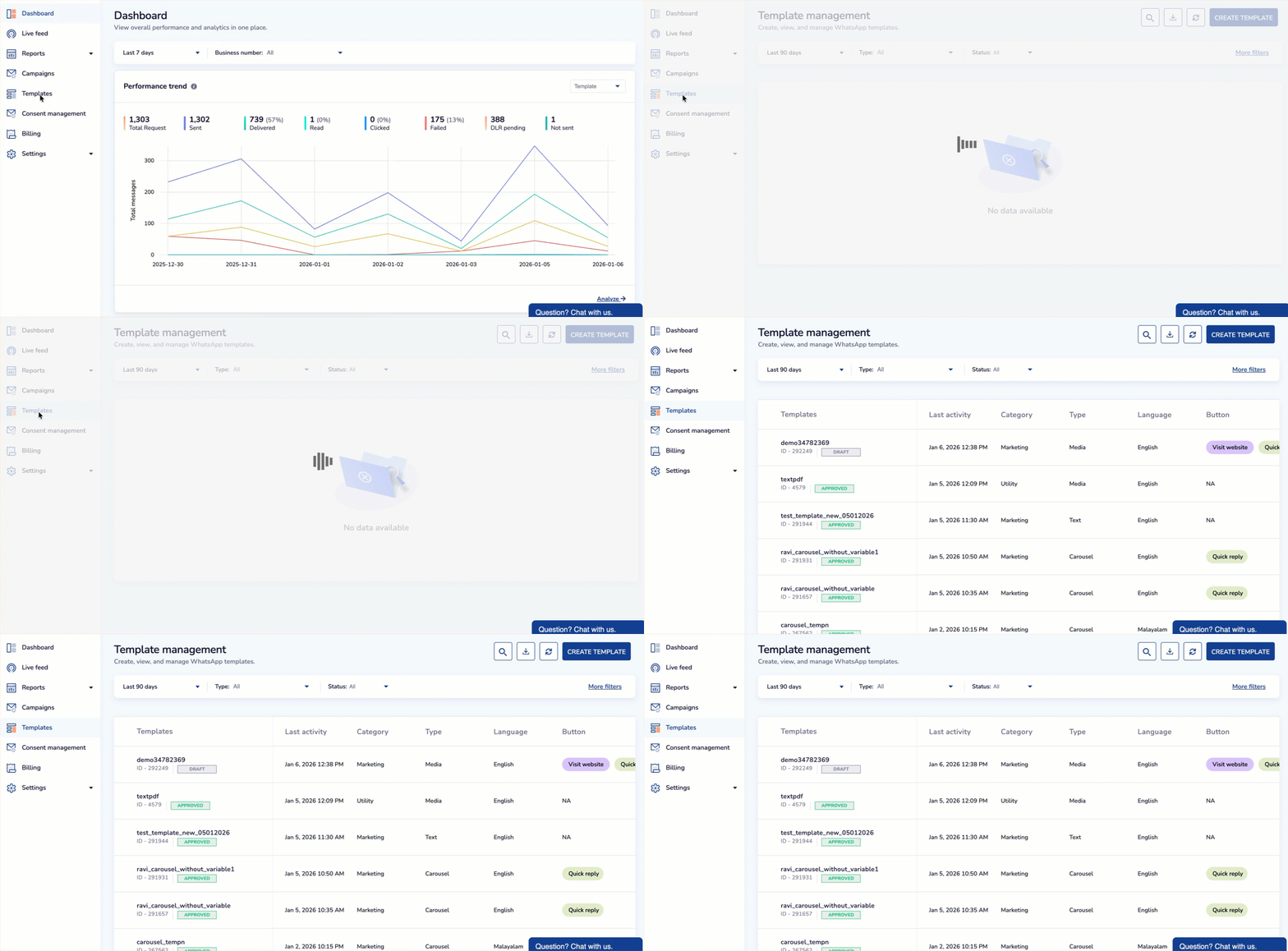
Navigate to Template Management
Functionality
Use the Live Feed dashboard filters and actions to monitor, search, and manage WhatsApp message logs in real time. The available functionality helps narrow down results and perform quick actions based on message data.
Refer to the given table to know the other functionalities available on the Live feed dashboard.
Type
Select the type you want to filter. Filter templates based on their type. Here are the options available:
- All: Includes all types of WhatsApp templates.
- Text: Templates that consist of text messages only.
- Image: Templates that include images.
- Video: Templates that feature video content.
- Document: Templates that contain document files.
- Catalogue: Templates that display a product catalog.
- Multi-Product: Templates designed to showcase multiple products.
Status
Filter messages based on their delivery status. Available only for Template message tab. Available statuses include:
- All: Refers to all templates, regardless of their current status.
- Pending: Refers to templates awaiting Meta's approval.
- Approved: Refers to templates that Meta has approved.
- Rejected: Refers to templates that Meta has reviewed and declined.
- Appeal: Refers to templates submitted for approval after rejection.
- Disabled: Refers to templates that have been deactivated and are no longer available.
- Flagged: Refers to templates marked for review due to potential violations.
- Reinstated: Refers to templates that were previously disabled or flagged but have been restored.
- Paused: Refers to templates that are temporarily paused and are not currently active.
- Pending deletion: Refers to templates scheduled for removal but not yet deleted from the system.
Each status helps you track the message journey and identify delivery or engagement issues.
Search
Use the search icon to locate specific messages by keyword, message ID, recipient number, or template name. This enables quick access to specific records without scrolling through the entire feed.
Download
Click the Download icon to export message logs. This is useful for auditing, reporting, or further analysis outside the platform. Downloaded files are typically in CSV or Excel format.
Refresh
Use the Refresh icon to reload the Live Feed and fetch the most recent message activity. This ensures you're viewing real-time data as it updates.
More Filter
Click on More Filter to apply advanced filters for granular control. Available only for Template message tab.
Multiple filters can be added by clicking the + Add Filter option, allowing compound filter conditions for detailed analysis.
Currently supported filters include:
- Language: Filter messages by language.
- Category: Filter messages by specific business category.