
WhatsApp Campaign
Learn to view, manage, and create WhatsApp campaigns on the Netcore CPaaS dashboard.
Overview
WhatsApp is a messaging channel that allows you to engage with your customers. You can send personalized messages, notifications, and updates directly to your users' WhatsApp accounts.
This channel helps improve customer engagement, support, and marketing efforts by reaching users on a platform they use daily.
Prerequisites
- WhatsApp Business Account: Ensure you have a verified WhatsApp Business Account.
- WhatsApp Business Number: Ensure that the phone number you use for WhatsApp is active and verified.
- Netcore Integration: Your WhatsApp business account should be integrated with Netcore. This requires API provided by WhatsApp.
- User Consent: Ensure you get consent from users to send them messages on WhatsApp.
- Templates: WhatsApp requires pre-approved message templates for non-transactional messages. Ensure you have these templates approved by Meta.
- Compliance: Follow WhatsApp’s business policy to ensure all communications are compliant.
Login to CPaaS WhatsApp dashboard and navigate to Campaigns. You can view the WhatsApp campaign listing page with all the Sent, In process, and Failed WhatsApp campaigns listed.
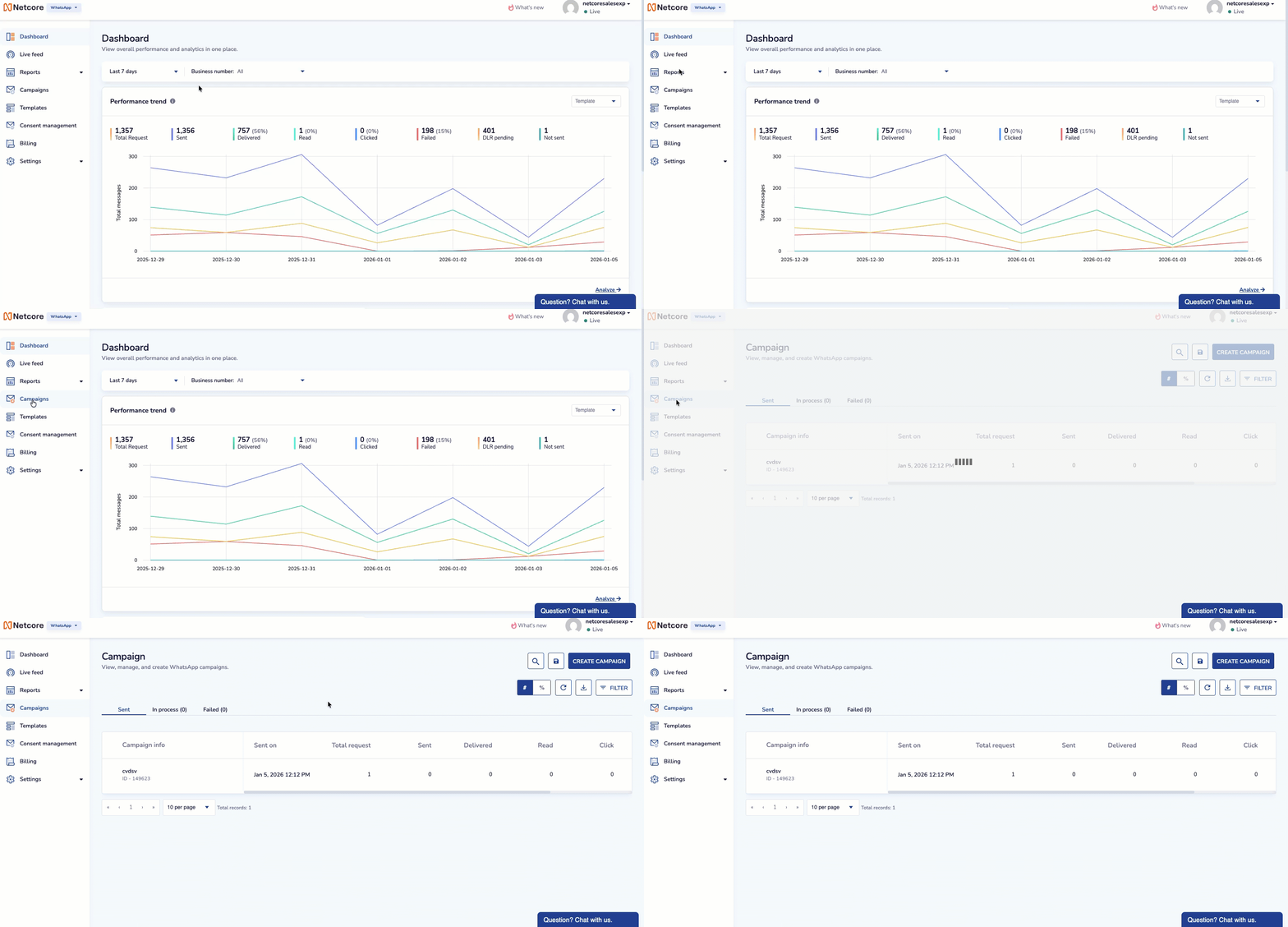
Campaign Listing Page
Key Features
- Direct Messaging: Send personalized messages to your customers in real-time.
- Rich Media Support: Share images, videos, documents, and more.
- Automation: Trigger messages based on user actions or predefined workflows.
- Two-Way Communication: Allow customers to respond, enhancing interaction and support.
- Analytics: Track message delivery, read rates, and customer responses.
Use Cases
| Use Case | Example |
|---|---|
| Transactional Alerts | Notify customers about order confirmations, payment receipts, or shipping updates. |
| Promotional Messages | Inform users about seasonal sales, special offers, or new product launches. |
| Customer Support | Assist customers with FAQs, troubleshooting, or account management. |
| Surveys & Feedback | Ask for customer feedback after a purchase or service experience. |
| Appointment Reminders | Send reminders for scheduled consultations, webinars, or deliveries. |
| Order Abandonment | Remind customers who have left items in their cart to complete their purchase. |
Functionality
The following functionalities are available on the Campaign Listing page:
View in Percentage or Number
View in Percentage presents data in the form of a percentage, while View in Number displays the exact count of the data.
Download Report
Allows you to download the report immediately. Select the preferred email address from the dropdown and click PROCEED. A summary report will be sent to the email address you have selected.
Search
Allows you to quickly find relevant information using keywords or phrases. Search by campaign name or ID for precise results.
Save Report
Allows you to save and schedule your reports based on your specified criteria. Toggle on Schedule This Report to automate the delivery of your report.
-
Provide a descriptive name for your report scheduler.
-
Provide the schedule date and time.
-
Select Frequency, which includes daily, weekly, and monthly.
-
Select the File Separator which includes Comma, Semi Colon and Pipe.
-
Select the method to send the report, which includes Email and SFTP and click SAVE
Filter
Click Filter at the top right of the Campaigns page to refine your report by applying specific filters and focusing on relevant data. You can narrow down results by selecting criteria such as duration, channel, and tags.
Refer to the table below to learn about the options available in the Filters section.
| Field Name | Description |
|---|---|
| Time period | Set the time range to view the campaign data such as Yesterday, Last 7 days, Last 30 days, and so on. |
| Business Number | Select the registered phone number through which users will receive your WhatsApp messages. |
| Tags | Select labels categorised under specific campaigns to filter campaign data. |