
Templates
Create or view SMS Templates in Netcore CPaaS
Overview
An SMS Template is a pre-approved, reusable message format used for sending Standardized Text Messages (SMS) to customers through communication platforms like Netcore CPaaS. These templates are especially important for transactional and promotional messages. In India, we have government rules for sending messages called Distributed Ledger Technology(DLT) compliance.
Log in to Netcore CPaaS Dashboard and navigate to the Template section to create, view, and manage SMS templates. On the Template dashboard, select the date range to analyze your SMS campaigns, or utilise the following capabilities present on the template dashboard:
| Feature | Description |
|---|---|
| 1. Search | Search for existing templates using Template Name, Content, or DLT Name. |
| 2. Download | Click the Download button to export the template report. It will be sent to your registered email. |
| 3. Refresh | Click Refresh to sync and display the most recent template data from the server. |
NoteIn Netcore CPaaS SMS, the hierarchy is as follows: Enterprise name > Feed Names > Sender ID. Each Enterprise name can have multiple Feed IDs, and each Feed can be associated with one or more Sender IDs.
Create Template
You can create a new SMS template in two ways:
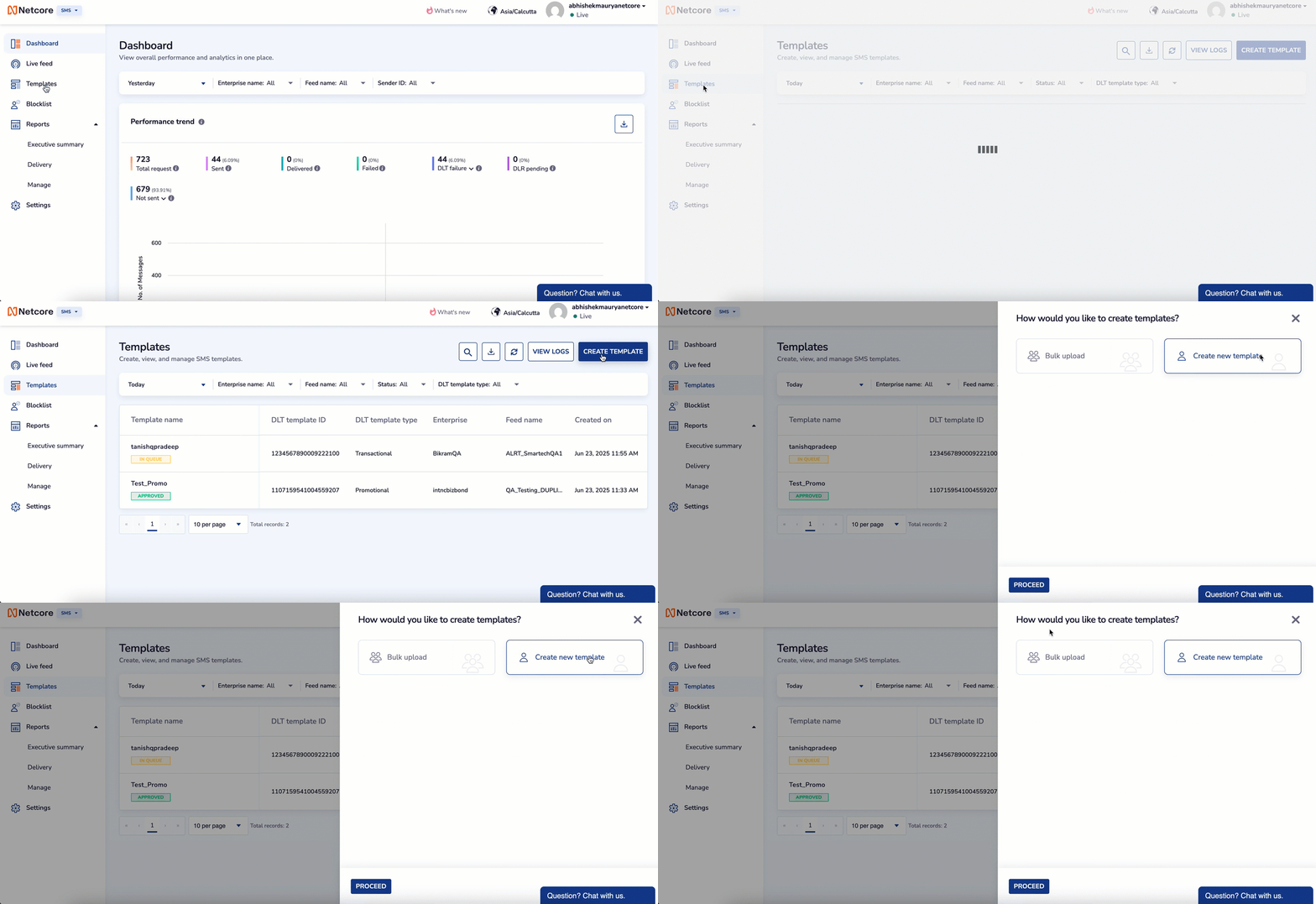
Important points to rememberIn order to publish SMS template from Netcore CPaaS panel, the following must be done.
- The SMS template in Netcore CPaaS must be published and approved on the DLT platform. If the template is not approved on DLT, the SMS will not be delivered.
- If the DLT template content does not exactly match the content in the Netcore CPaaS SMS template, the SMS will not be delivered.
Create New Template
Follow the steps below to create new template.
- Click on Create New Template > Proceed and outline the details as below and click Next Step.
| Field | Description |
|---|---|
| Template Name | Name assigned to the SMS template. |
| DLT Template Type | Type of message (Transactional / Promotional / Service) |
| DLT Template ID | Unique ID assigned by the DLT platform. |
| Enterprise Name | Account name linked to the template. |
| Feed Name | Channel used to send the SMS. |
- In the Content section of the template, customize the message you want to send, ensuring it stays within the 160-character limit.
SMS Character Limit Alert
- If the message contains any special characters (such as emojis or non-English scripts), the character limit is reduced from 160 to 70 characters.
- If the message content exceeds 160 characters, it is split and sent in multiple parts, which may affect delivery cost and readability.
- You can preview the SMS content directly on the panel. If you're satisfied with the message, click Save & Send for Approval. The request will then be sent to the admin team for review and approval.
Bulk upload
You can upload multiple templates at once. Click on Bulk upload > Proceed and select the appropriate Enterprise Name from the dropdown menu. You can choose from below two options to proceed.
- Download a sample
.csv file, update it with your template details, and reupload it. - Directly upload a new
.csvor.xlsxfile containing the required template information in the following order.- DLT Template ID
- Template Name
- DLT Template Type
- Template Message
- Feed ID
Note
- Once the file is uploaded, its status will appear as In Processing. After processing is complete, you will be able to view the number of valid and invalid records.
- You do not need to include headers when uploading a .csv file.
Template List Table
On the Template Dashboard, see all the existing templates with details below.
| Field | Description |
|---|---|
| Template Name | Custom name assigned to the template |
| DLT Template ID | A unique identifier assigned by the DLT platform for a registered SMS template. |
| DLT Template Type | Specifies the type of message |
| Enterprise | The brand or account under which the template is created. |
| Feed Name | The sender channel or route through which the SMS will be sent. |
| Created On | The date and time when the template was created in the system. |